
📄 Summary: What You’ll Learn in This Article
This article outlines the basic features of the reports module. It shows the location of the module and its basic capabilities.
-
Location of the Reports module
-
General applications of the Reports module
🧑🤝🧑 Who Should Read This?
This article is most useful for:
-
Marketing Professionals, Marketing Operations Managers, Business leaders who are interested in Marmind’s features
-
New Marmind Users
✔️ Prerequisites: What Should You Know Before Getting Started?
Level: Easy
Access required: None
-
No prior knowledge is required. This is an introductory article for those exploring Marmind for the first time.
Where to find the Reports Module
You can access the Reports Module directly via the module bar on the left-hand side of the Marmind interface.
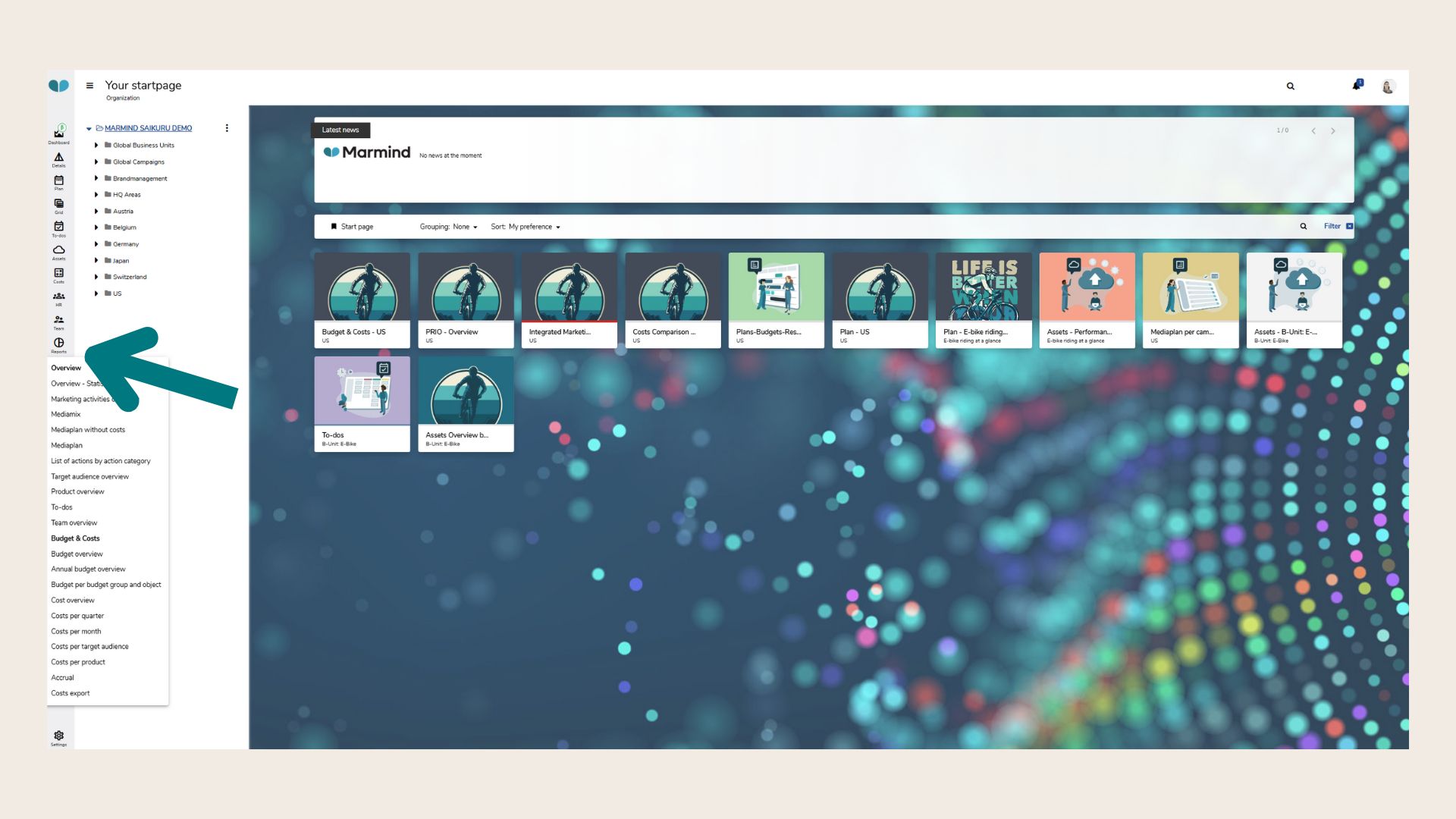
It is the only module that does not open in the content area but rather as a context menu first:
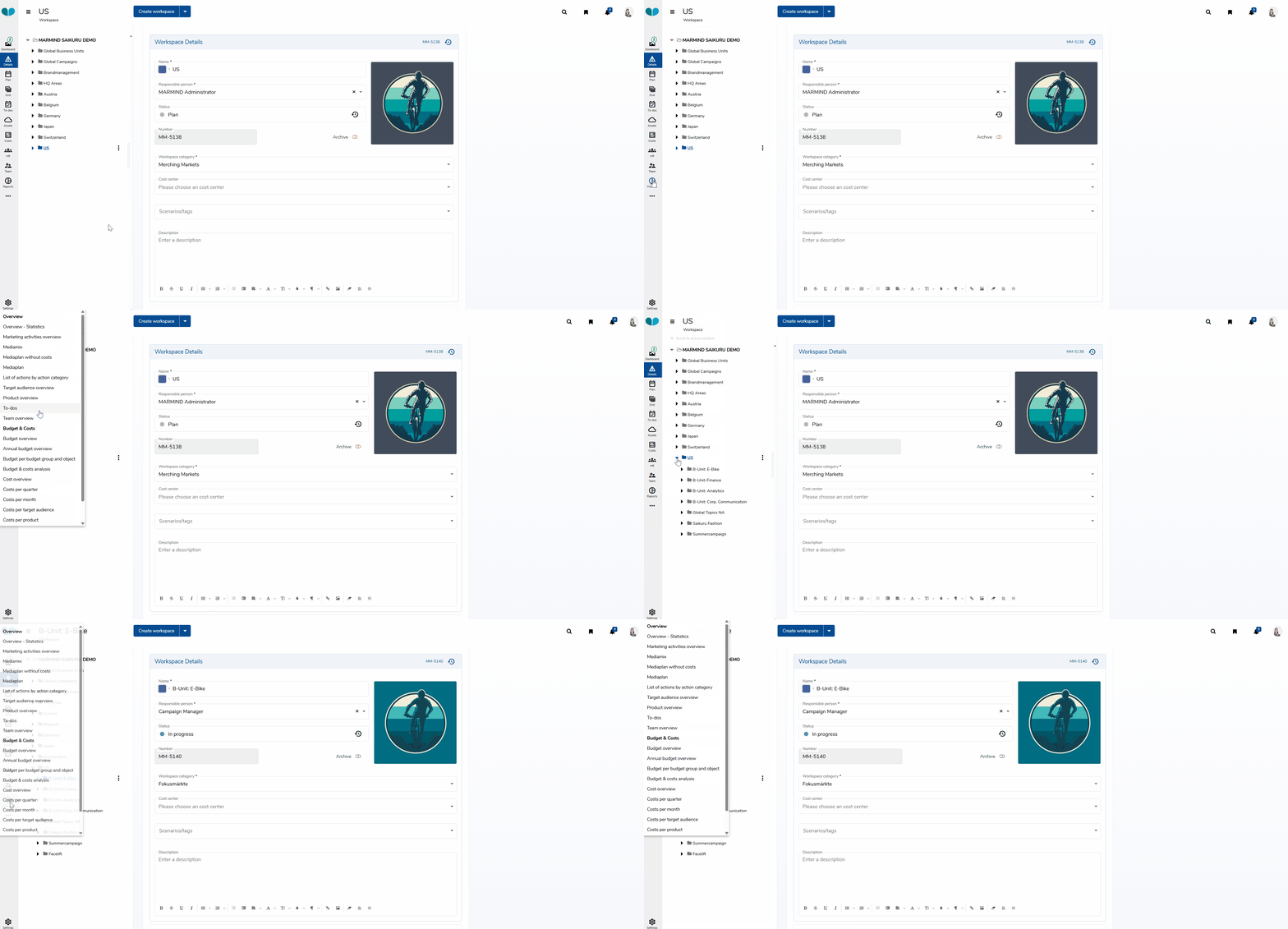
Note: The type of reports shown in the context menu depend on the object you have selected in the navigation tree.
When selecting a specific report, a new tab will open with the report and several filtering options to refine your desired output.
What is the Reports module generally used for?
At each object level, Marmind offers the user a set of predefined reports. These give you a flexible toolkit for analyzing marketing activities, budgets, and team performance. Reports are designed to support both day-to-day operations and executive decision-making.
Note: If you would like a real-time overview of KPIs, make use of the Marmind Dashboard and its smart charts.
The individual reports are briefly described below. Since working with reports can be very extensive, your Marmind contact person will be happy to answer any questions you may have.
You’ll find different report types, for example:
-
Activity and Campaign Reports such as Marketing Activities Overview, Campaign and Project Overviews, Media Plans, or Fact Sheets for management briefings.
-
Channel, Audience, and Product Insights like Mediamix, Target Audience Overview, and Product Overview to understand utilization, reach, and focus areas.
-
Operational Tracking through To-Do lists, Action Category breakdowns, and Team Overviews for role and responsibility audits.
-
Financial Reporting including detailed Budget and Cost analyses (per month, quarter, audience, or product), as well as accruals and exports for financial alignment.
Together, these reports provide a 360° view of your marketing efforts: from strategy and planning down to execution and cost control.
❓ FAQs