
📄 Summary: What You’ll Learn in This Article
The article introduces the main functionalities of the Plan Module in Marmind, explaining how it supports everything from strategic annual planning to detailed media execution, and showcases its interactive features, customization options, and integration capabilities.
-
Location of the plan module
-
General applications of the plan module
🧑🤝🧑 Who Should Read This?
This article is most useful for:
-
Marketing Professionals, Marketing Operations Managers, Business leaders who are interested in Marmind’s features
-
New Marmind Users
✔️ Prerequisites: What Should You Know Before Getting Started?
Level: Easy
Access required: None
-
No prior knowledge is required. This is an introductory article for those exploring Marmind for the first time.
Where to find the Plan module
You can find the plan module in the module bar. In combination with clicking on an area in the navigation bar, you will be able to see the Plan view for the selected object.
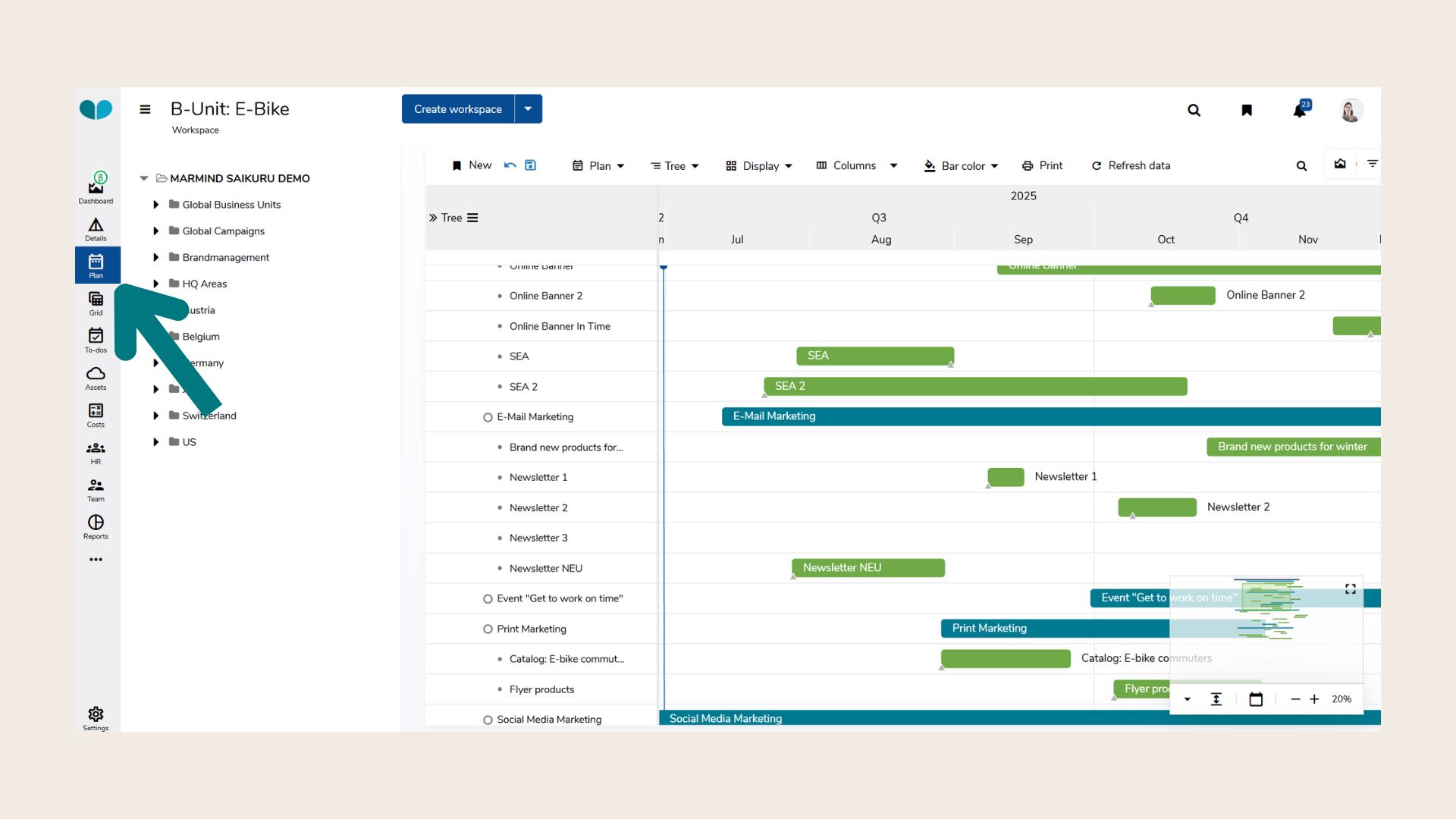
There are different viewing options, e.g. according to grouping (channel, responsibilities, categories, etc.) or bar coloring (status, channel, etc.).
What is the Plan module generally used for?
The Plan Module serves as a visual timeline and organizational workspace for marketing activities in Marmind. It enables teams to plan, manage, and monitor the execution of marketing objects (e.g., campaigns, projects, actions, and to-dos) across time and hierarchy levels in an intuitive and highly customizable view.
Key Functionalities
-
Visual Timeline View
Provides a clear, calendar-based display of marketing objects such as campaigns, projects, actions, and to-dos across various timeframes—daily, weekly, monthly, or yearly. -
Hierarchical and Strategic Planning
Supports both top-down strategic planning and bottom-up execution views, accommodating everything from high-level annual roadmaps to granular media activities. -
Grouping and Filtering Options
Allows users to group and filter objects by attributes like category, status, region, tags, target audience, and custom fields—enabling highly tailored views with up to three grouping levels. -
Drag & Drop Object Creation and Scheduling
Enables fast and intuitive creation and rescheduling of objects directly on the timeline by clicking and dragging time slots. -
Media Plan Imports and Data Migration
Supports importing external planning data (e.g., Excel-based media plans) and integrating existing planning structures from third-party systems. -
Integrated Financial Overview
Displays budgets, actual costs, and forecast data directly within the timeline, offering a complete financial view alongside time planning. -
KPI Integration
Visualizes performance data through KPI columns, making it easy to correlate execution timelines with measurable outcomes. -
Custom Column Configuration
Columns for dates, custom fields, financials, and KPIs can be shown or hidden, resized, and saved per user preference or shared bookmark. -
Agile Workflow Support
Facilitates agile marketing management by allowing frequent updates, flexible rescheduling, and real-time collaboration using shared views. -
Personalized Bookmarks
Users can save and reload their favorite views, including filters, groupings, and display settings, ensuring consistency and efficiency in recurring planning sessions. -
Compact and Fullscreen Modes
Offers a compact view for dense schedules and a fullscreen mode for focused planning sessions. -
Virtual Root Access
Users can view plan data across the entire organization (if permitted), even without direct access to the root structure—ensuring transparency across distributed teams.
The Plan View
-
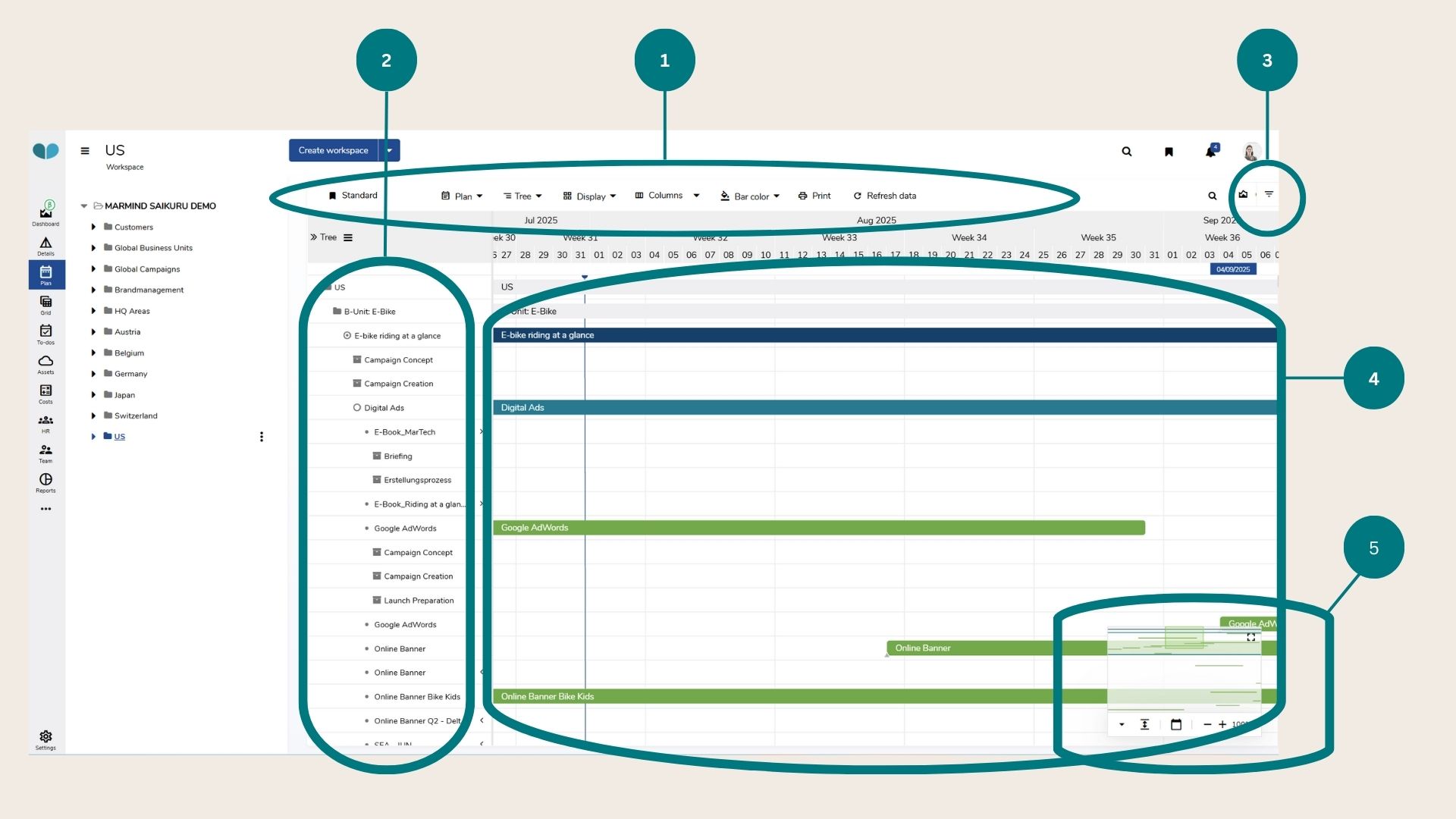
Grouping and display options: The grouping function allows an individual structuring of the marketing measures by the structure in the navigation tree, campaigns, projects, channel, action category, medium, validity or responsibility. Bars can be faded in and out ("Display") and the color scheme of the bars and to-dos can be selected according to different criteria.
-
Structure and grouping area: It represents the structure of all marketing measures in the same way as the navigation tree. Changes to the displayed measures can be made using the grouping and display options in the navigation tree.
-
Show and hide filter options: Click on the filter icon to show or hide individual filters for campaigns, actions and to-dos.
-
Calendar area: All planned marketing measures are displayed here; new measures can be created via mouse click.
-
Mini-plan: The mini-plan serves as an orientation aid to give a better overview of complex structures. The green area reflects the area shown in the calendar area.