
📄 Summary: What You’ll Learn in This Article
This article provides an overview of rights and roles in MARMIND, explains how permissions inherit within the object tree, and shows how to view and adjust a user’s permissions in the Teams module.
-
Roles and permissions overview
-
Permission inheritance explained
-
Adjust rights in Teams module
🧑🤝🧑 Who Should Read This?
This article is most useful for:
-
Marmind administrators who manage user permissions.
✔️ Prerequisites: What Should You Know Before Getting Started?
Level: Easy
Access required: Admin rights
-
Basic knowledge about the object tree and the teams module is required.
Rights and Roles by default
In Marmind, you can customize rights and roles for each object to fit your company’s needs.
Main roles
The following rights and roles are provided by Marmind by default:
|
Role / Category |
Rights |
Description |
Comment |
|---|---|---|---|
|
Super Admin |
admin + see description |
|
Role can only be set manually via database and is not visible in the User Interface. |
|
Administrator |
Full control ✅ read, create, edit, delete |
Management of master data / settings |
|
|
Moderator |
Most actions ✅ read, create, edit ⚠️ limited delete |
|
|
|
Contributor |
Work access ✅ read, create, edit ❌ no delete |
|
|
|
Guest |
View only ✅ read ❌ no changes |
|
|
Collaboration rights
|
Type |
Description |
Comment |
|---|---|---|
|
Assets |
|
Starting from Guest role |
|
To-dos |
|
Starting from Guest role |
Budget & Expenses Rights
|
Action |
Description |
Comment |
|---|---|---|
|
see |
|
Implicitly requires Contributor role + “see” rights. |
|
edit |
|
Implicitly requires Contributor role + “see” rights.
|
|
approve |
Give approval |
Required for budget approval; implicitly requires the participant / moderator role. |
Marketing Objects Rights
|
Action |
Description |
Comment |
|---|---|---|
|
delete |
Delete workspaces, campaigns, projects, actions, and work packages |
Starting from Contributor role. |
|
edit |
Edit workspace |
Starting from Contributor role. |
Core Concept
Marmind security works like a folder tree with permissions that flow downward and can expand at deeper levels.
Marketing Folder (You: ReadOnly)
  ├── Active Campaigns (You: Contributor) ← EXPANDED
  │   └── Q1 Launch (You: Moderator) ← EXPANDED AGAIN
  └── Archive (You: ReadOnly) ← INHERITED
Key Rule: Permissions can increase as you go deeper, but never decrease.
What You CAN Do
✅ Start permissions at any level (no need to grant from root)
Company Root (no access)
  └── Sales Dept (Team: "Sales" → Contributor) ← START HERE
      └── Q1 Campaigns (auto-inherit Contributor)
✅ Expand permissions deeper
Marketing (Team: "Junior" → ReadOnly)
  └── Active Projects (Team: "Junior" → Contributor) ← EXPANDED
✅ Different teams, different permissions
Campaign Folder
  ├── Team: "Designers" → Contributor
  ├── Team: "Managers" → Administrator
  └── Team: "Vendors" → ReadOnly
✅ Separate read from write/delete
-
Budget readers can view financials without editing
-
Contributors can edit but not delete
-
Specific "Deleter" roles required for deletion
What You CANNOT Do
❌ Restrict at lower levels
Marketing (Team: "Sarah" → Contributor)
  └── Archive (try to make ReadOnly) ← IMPOSSIBLE
Once Sarah has Contributor, she has it everywhere below.
❌ Hide items from team members (in new features)
Folder (Team: "Everyone" → Contributor)
  └── My Private Item ← Everyone can still see it
Privacy requires separate folders, not item flags.
❌ Filter by "show only mine" (security level)
-
"My items" views are UI filtering, not security
-
If you can read the folder, you can read all items
Teams Module
You can find the authorizations by clicking on the object and the “Team” module:
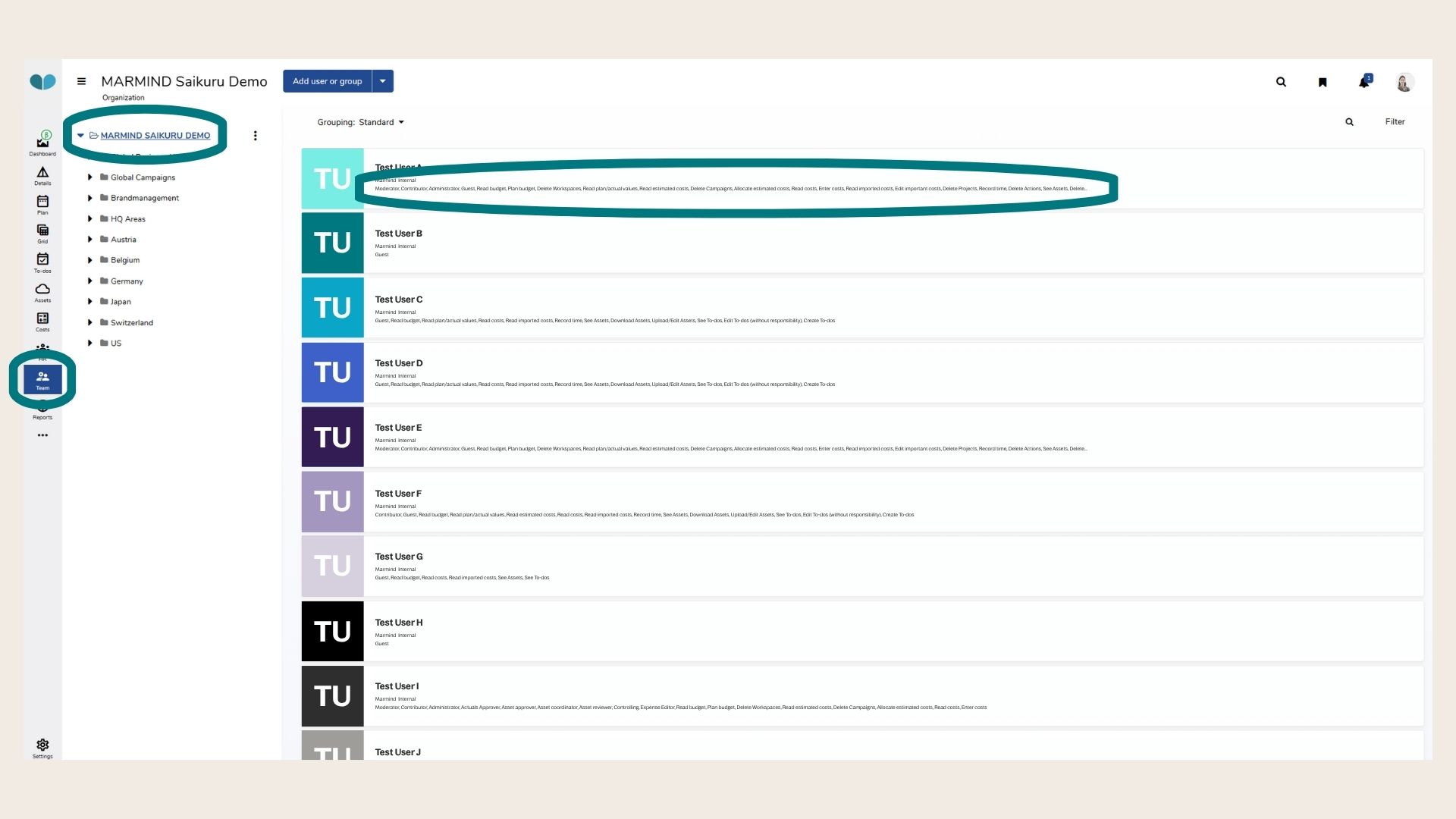
A user’s permissions are visible in the overview under their name.
When you click on the user, you get a more detailed view on their permissions and you are able to change them by checking the box next to the permission. Scroll down to see all possible permissions:
.jpg?cb=de9eb2f01d49e94b4cd1000de7083fc3)
❓ FAQs