
📄 Summary: What You’ll Learn in This Article
In this article, you’ll learn how to manage objects in Marmind effectively, including how to create, copy, move, and delete them, and how to work with object statuses.
-
Object Types
-
Modifying Objects
-
Deleting Objects
🧑🤝🧑 Who Should Read This?
This article is most useful for:
-
Marmind users responsible for planning, managing, or maintaining campaigns, projects, or actions within the platform.
✔️ Prerequisites: What Should You Know Before Getting Started?
Level: Intermediate
Access required: You must have the necessary permissions to manage objects in Marmind.
-
Basic understanding of the Marmind navigation tree and interface.
Object Types in Marmind
In Marmind, objects represent the core structural elements used for organizing, planning, and managing marketing activities. These objects form a hierarchical structure and are the foundation for collaboration, budgeting, tracking KPIs, and workflow automation.
Here are the main object types in Marmind:
.jpg?cb=e93ea3e15df3df021212b66efa97a1a7)
-
First hierarchy level: Workspace
-
Departments, areas, etc.
-
Include campaigns and/or other workspaces
-
-
Second hierarchy level: Campaign
-
Bracket over projects and activities
-
Definition of goals, target countries, advertised products, etc.
-
-
Third hierarchy level: Project
-
Categorization of the actions of a campaign
-
Definition of which action types are planned together in a project
-
-
Fourth hierarchy level: Action
-
Concrete marketing activities (stories-ad, advertorial, podcast,…)
-
-
Second, third and fourth hierarchy level: Work package
-
Groups or includes: To Dos or Media assets
-
Create Objects
To create a new object (e.g., campaign or project):
-
Select the object in the navigation tree where the new object should be created.
-
Click on the "Next Steps" menu in the header.
-
Choose "Create a Campaign" or another object type.
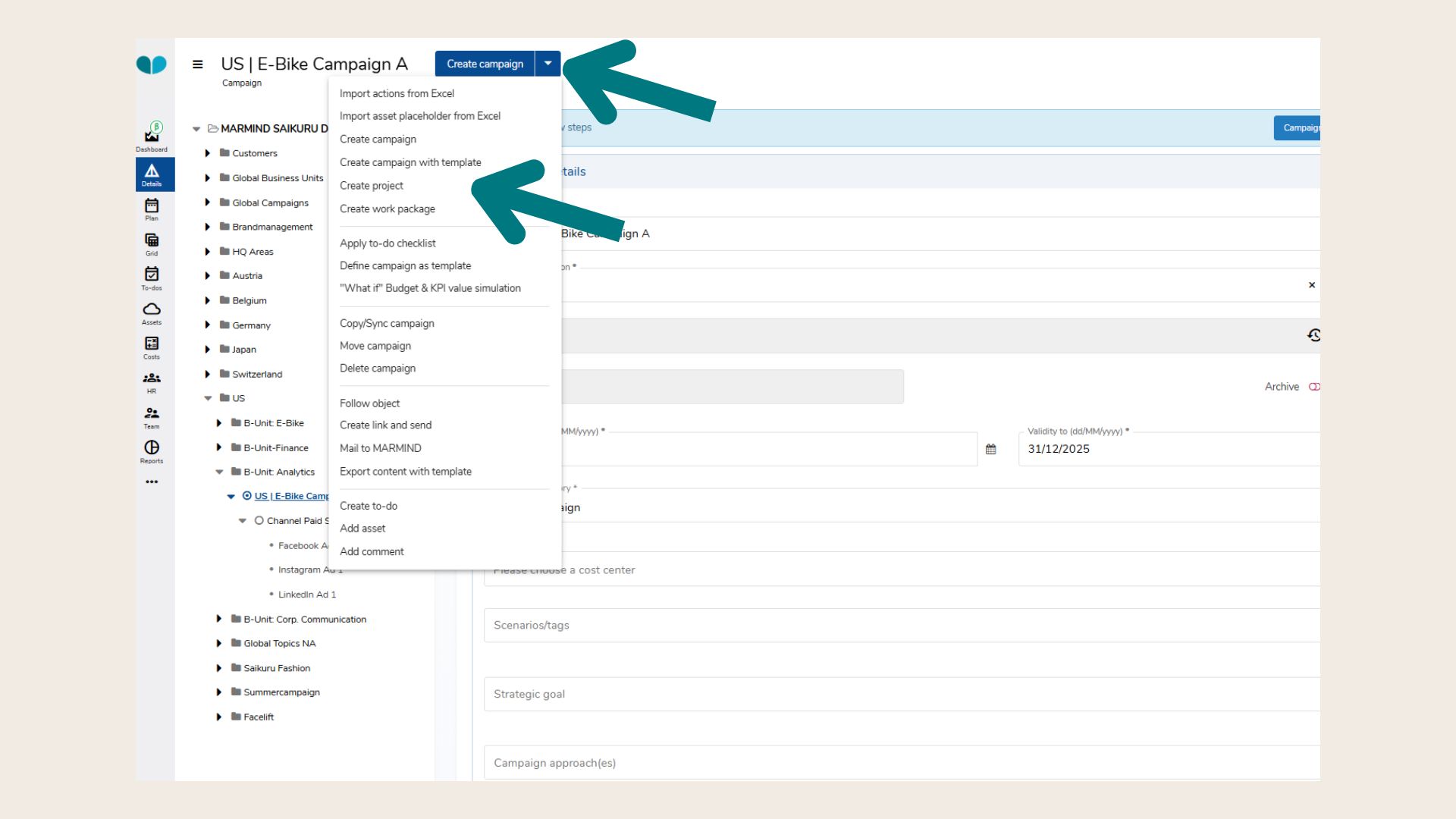
-
Fill in all orange mandatory fields in the campaign creation mask.
-
Click “Create and open ..” to finish.
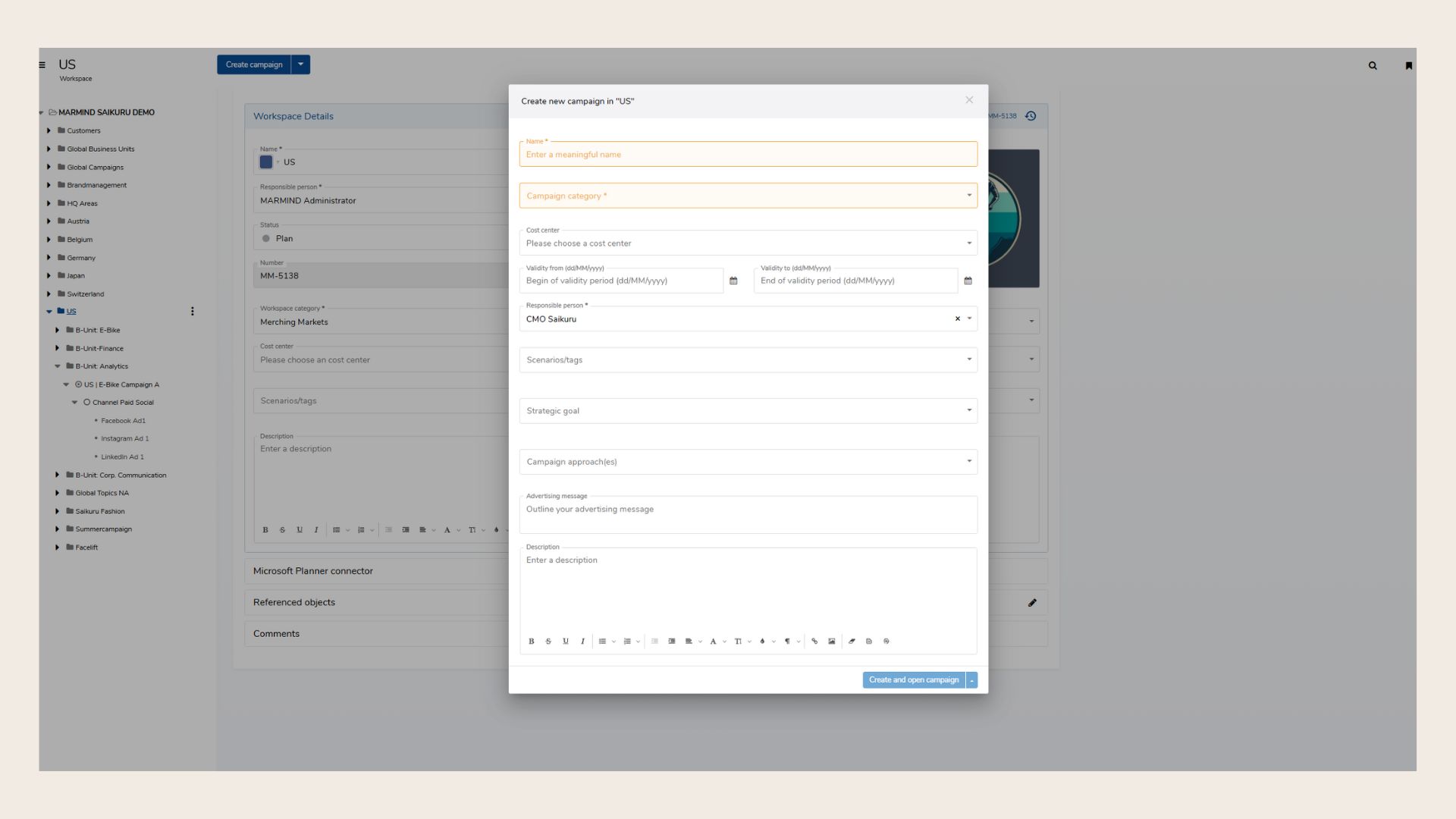
Note: Only users with the appropriate rights can create objects
Copy Objects
To duplicate existing objects:
-
Select the object in the navigation tree.
-
Open the "Next Steps" menu and select "Copy".
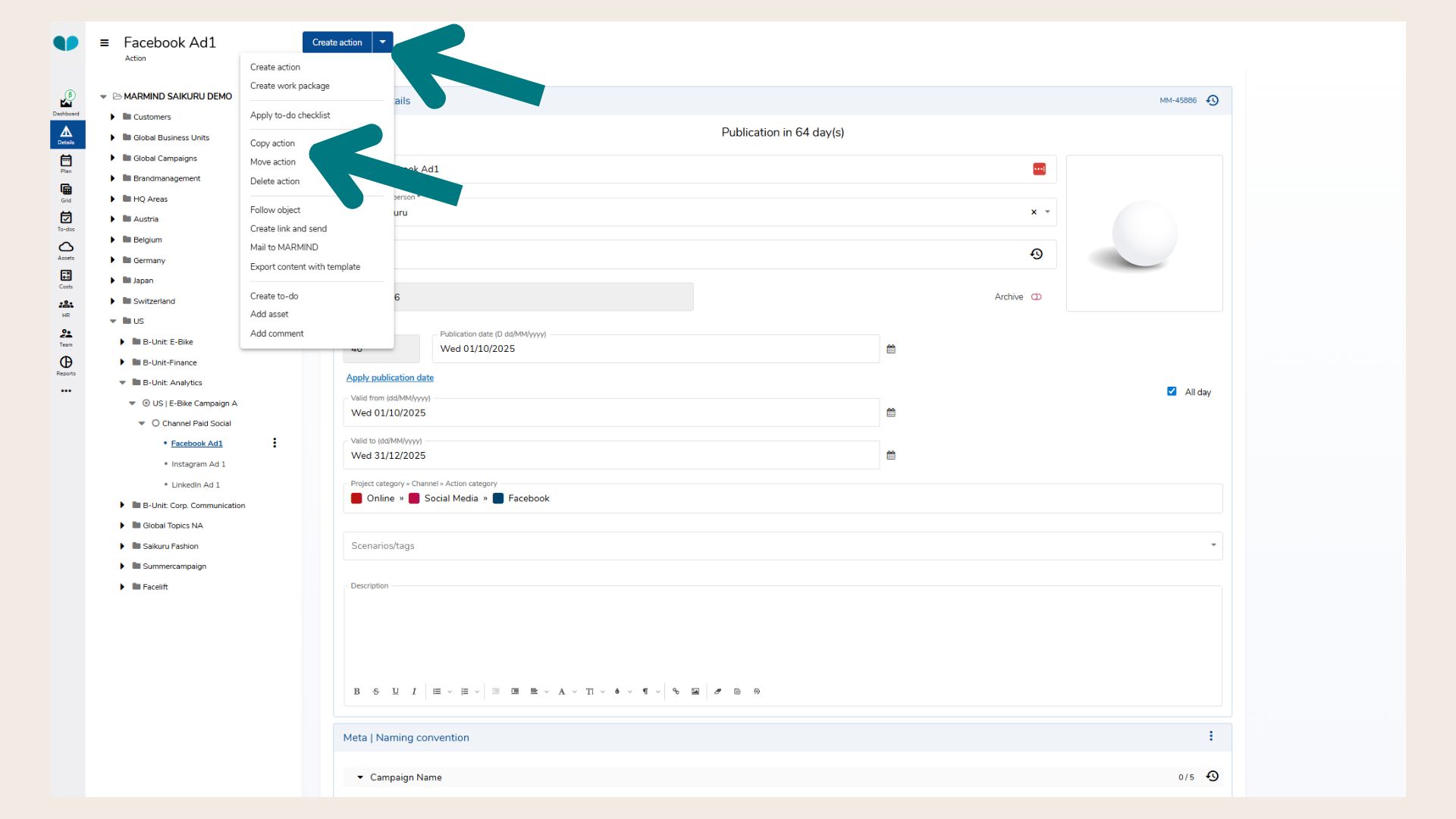
-
In the copy mask, select which elements to include:
-
Sub-objects
-
Assets
-
Key figures
-
Target countries
-
Products
-
Target audiences
-
Tracking URL
-
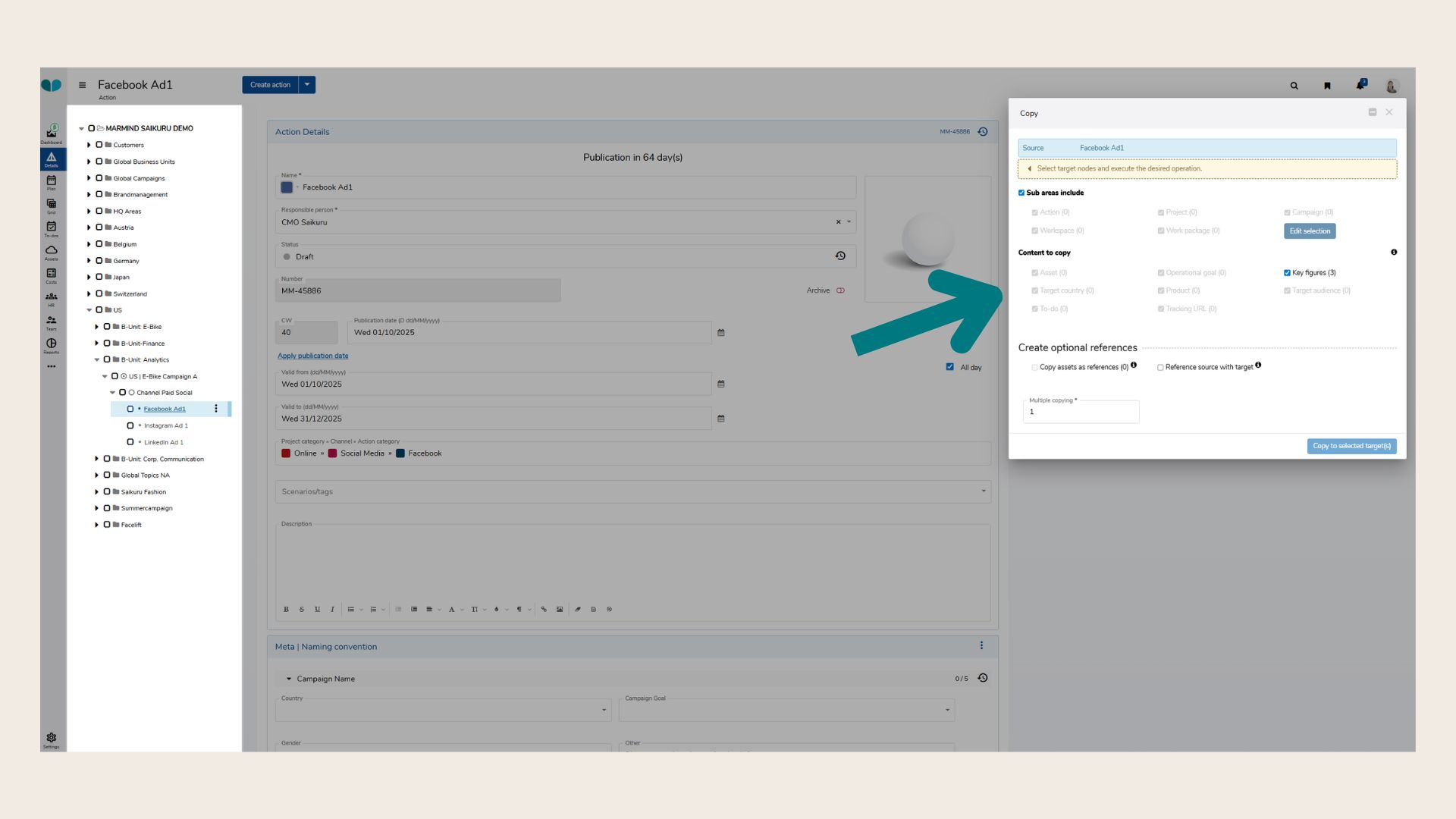
-
Choose a target location for the copy.
-
Optionally, rename the copied object.
-
Confirm the action.
Important note: Budget, costs, notifications and comments on assets or To-Dos are never copied.
Move Objects
To move an object into another (e.g., move a campaign into a different project):
-
Select the object in the navigation tree.
-
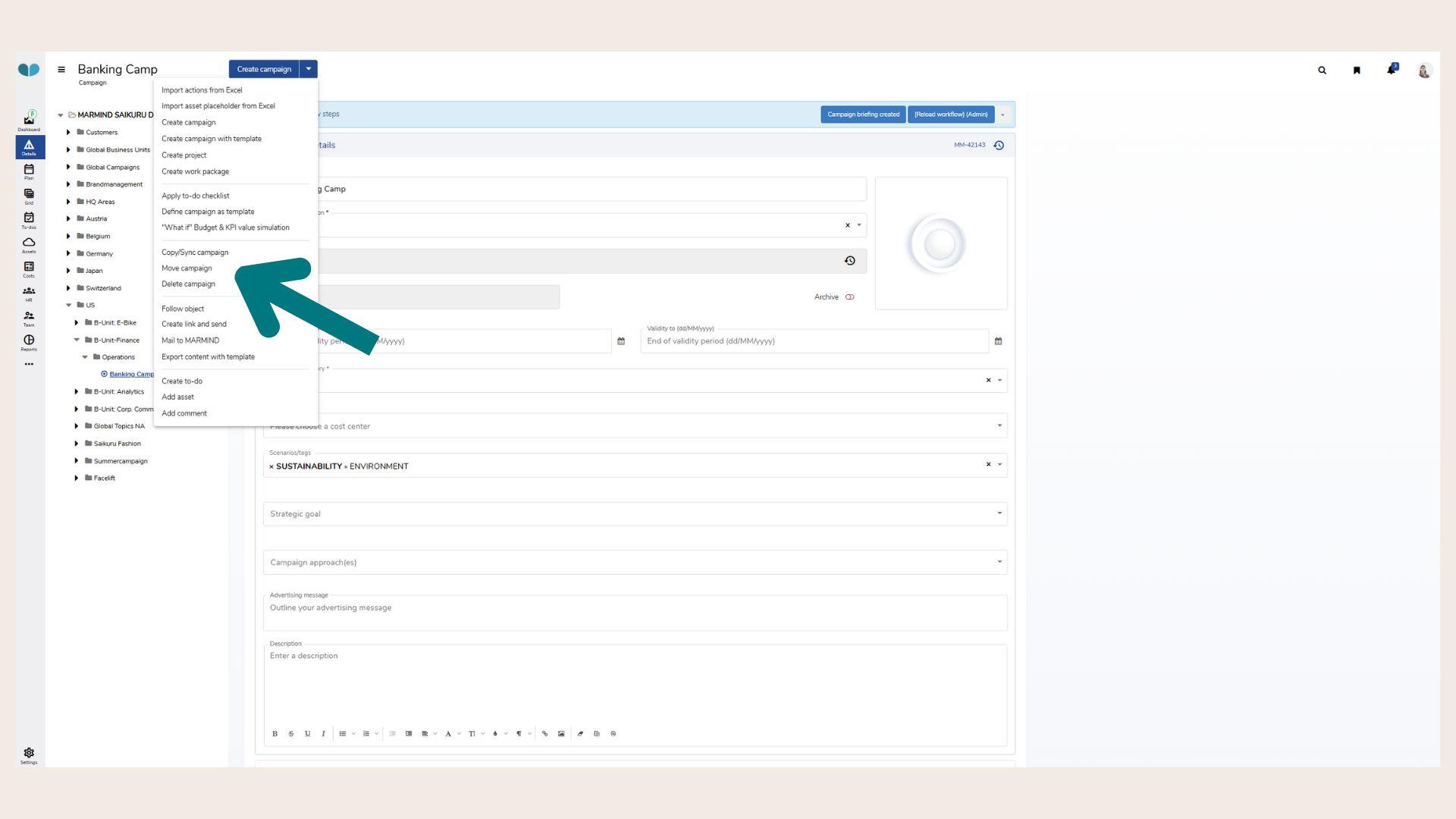
Open the "Next Steps" menu and choose "Move".
-
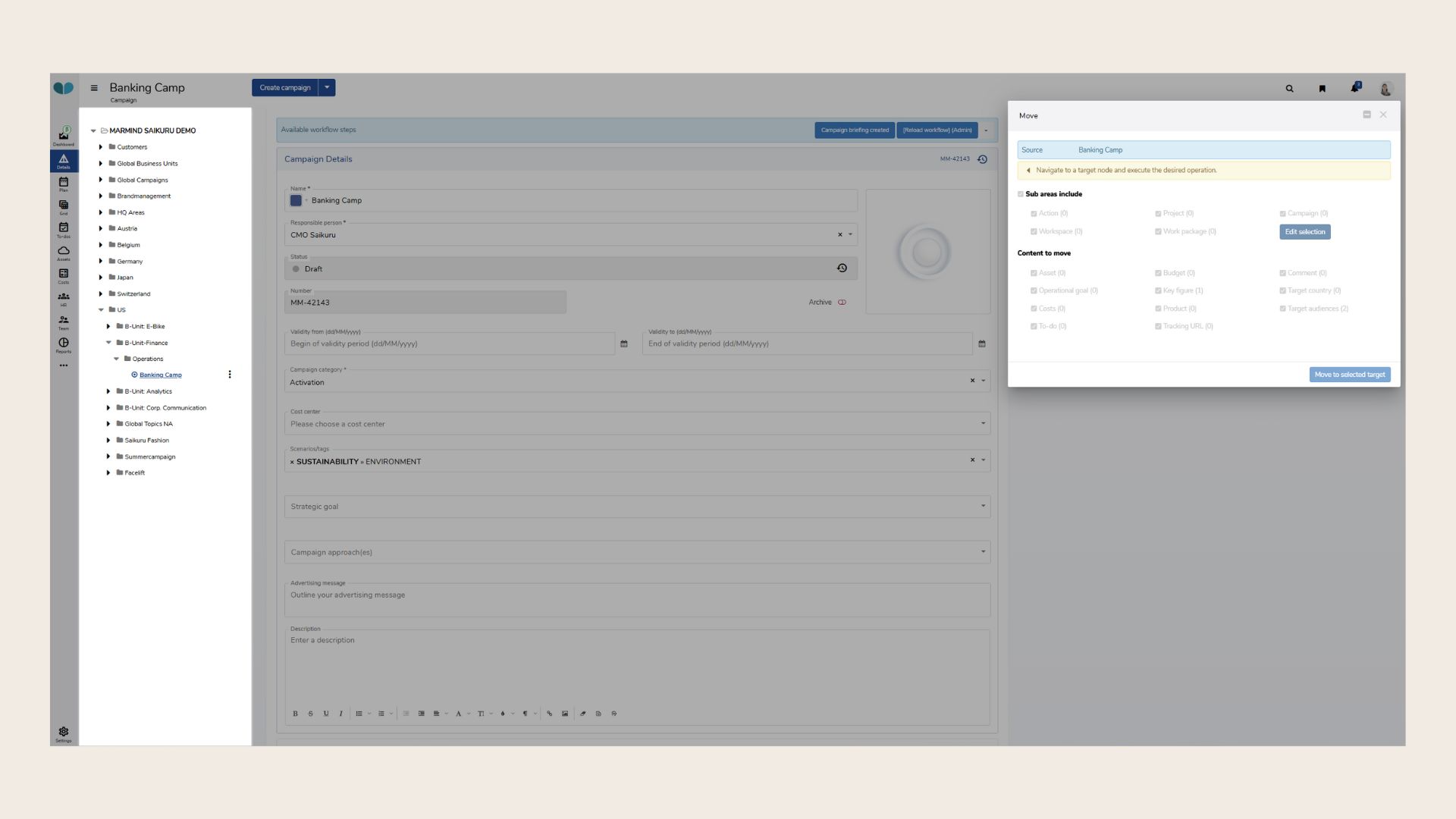
A new input window will open – choose the target node/object from the tree.
-
Confirm the action.
Delete Objects
To delete an object (e.g., a campaign):
-
Select the object in the navigation tree.
-
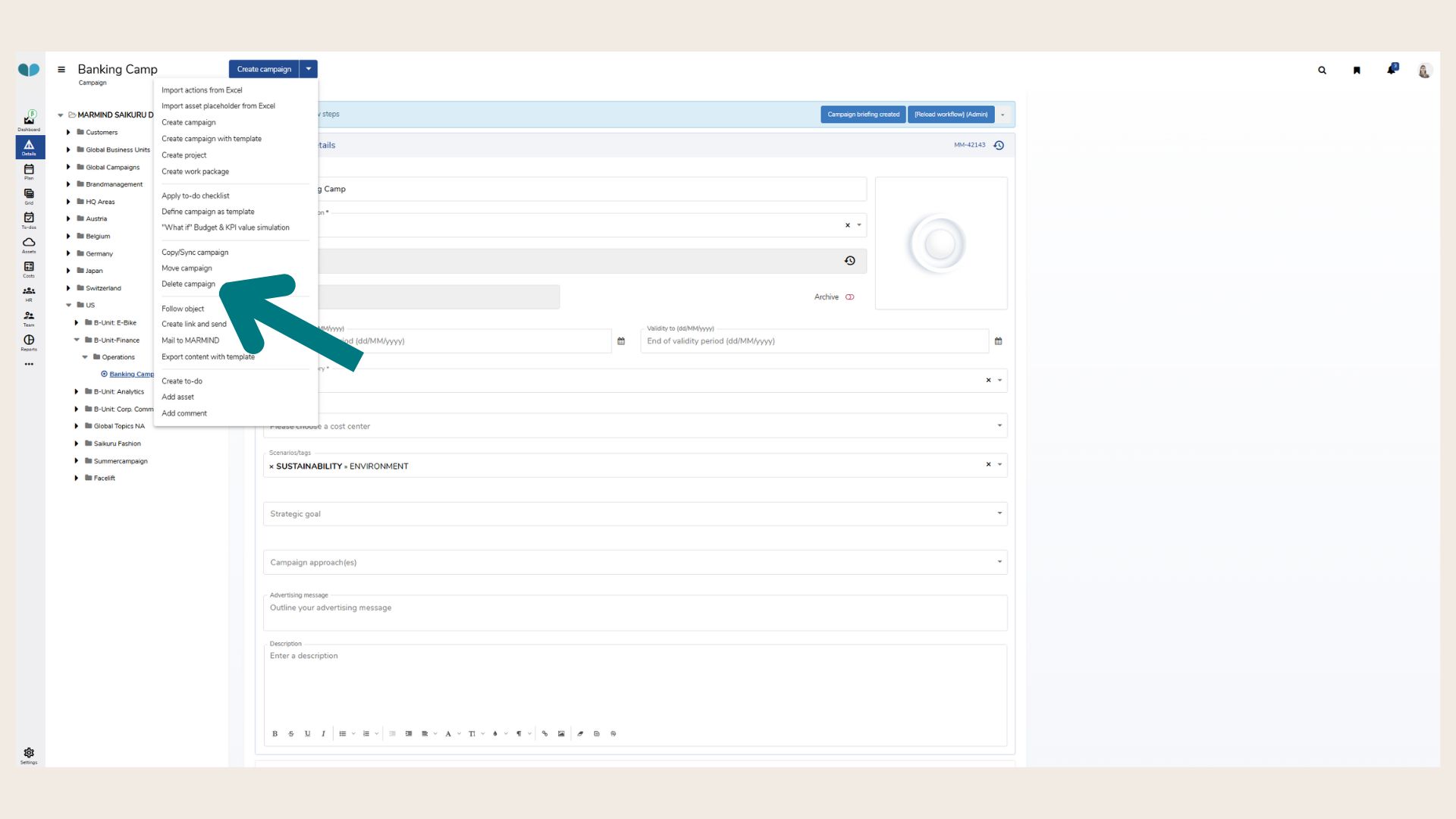
Go to the "Next Steps" menu and select "Delete".
-
Confirm the deletion when prompted.
Important Note: Deleted objects cannot be recovered. All related content (e.g. assets, sub-objects, To-Dos) will be permanently removed.
Object Status
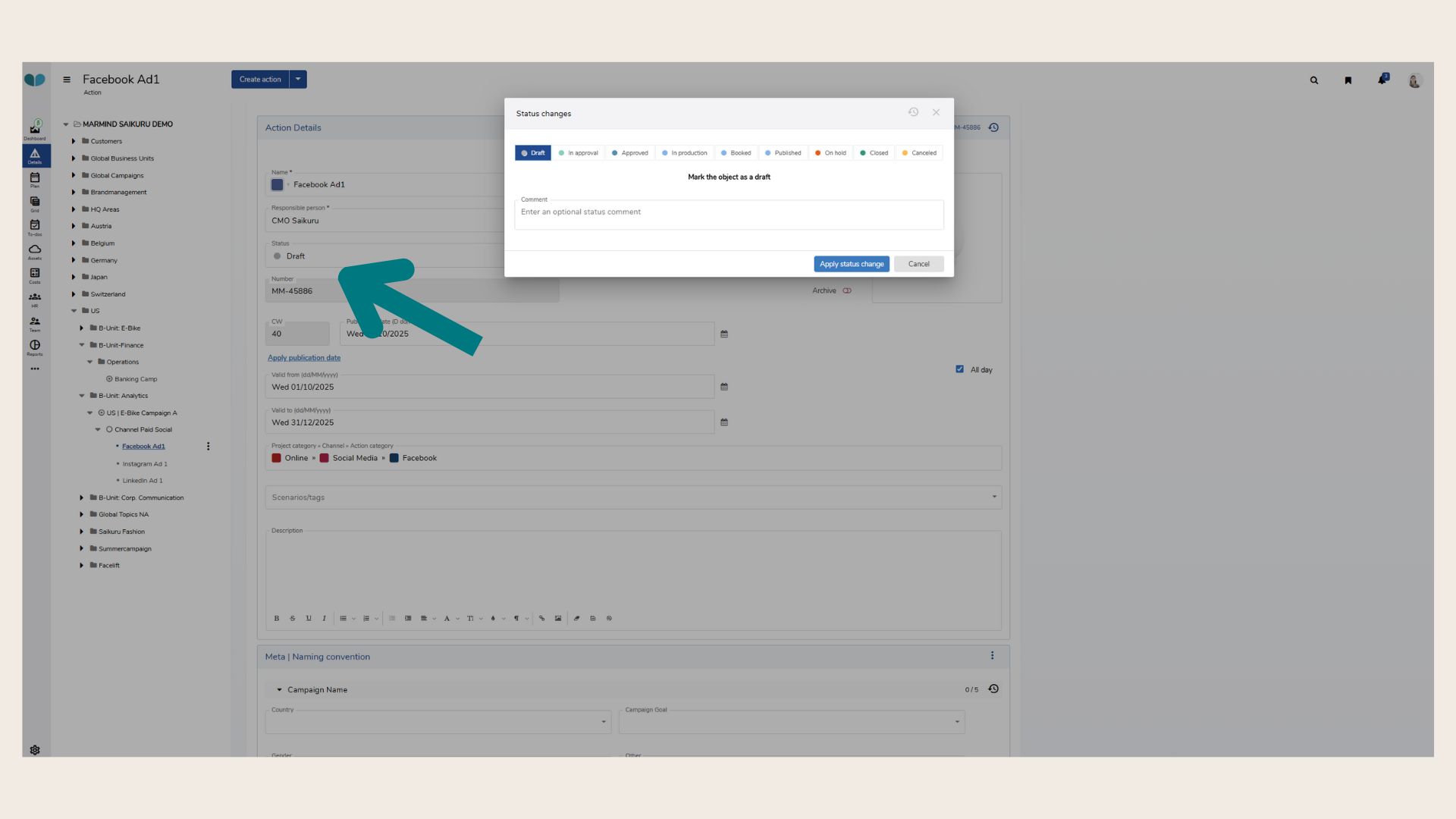
Every object (campaign, project, or action) can be assigned a status to improve planning clarity. Marmind offers five predefined status categories:
-
Plan
-
In Progress
-
On Hold
-
Closed
-
Canceled
These statuses help structure and evaluate your plans.
You can find the object status when clicking on the respective object, the Detail Module and then clicking on “Status”:
Note: You might have custom statuses in your Marmind system.
❓ FAQs