
📄 Summary: What You’ll Learn in This Article
This article explains how to create, edit, and deactivate news entries on the Marmind start page. It provides step-by-step instructions on navigating to the start page, creating new news, editing existing entries, and deactivating news that is no longer relevant.
-
Location
-
Step-by-step tutorial
🧑🤝🧑 Who Should Read This?
This article is most useful for:
-
Administrators who need to manage news content on the Marmind platform.
✔️ Prerequisites: What Should You Know Before Getting Started?
Level: Easy
Access required: Administrator rights
-
No prior knowledge is required.
Location of News
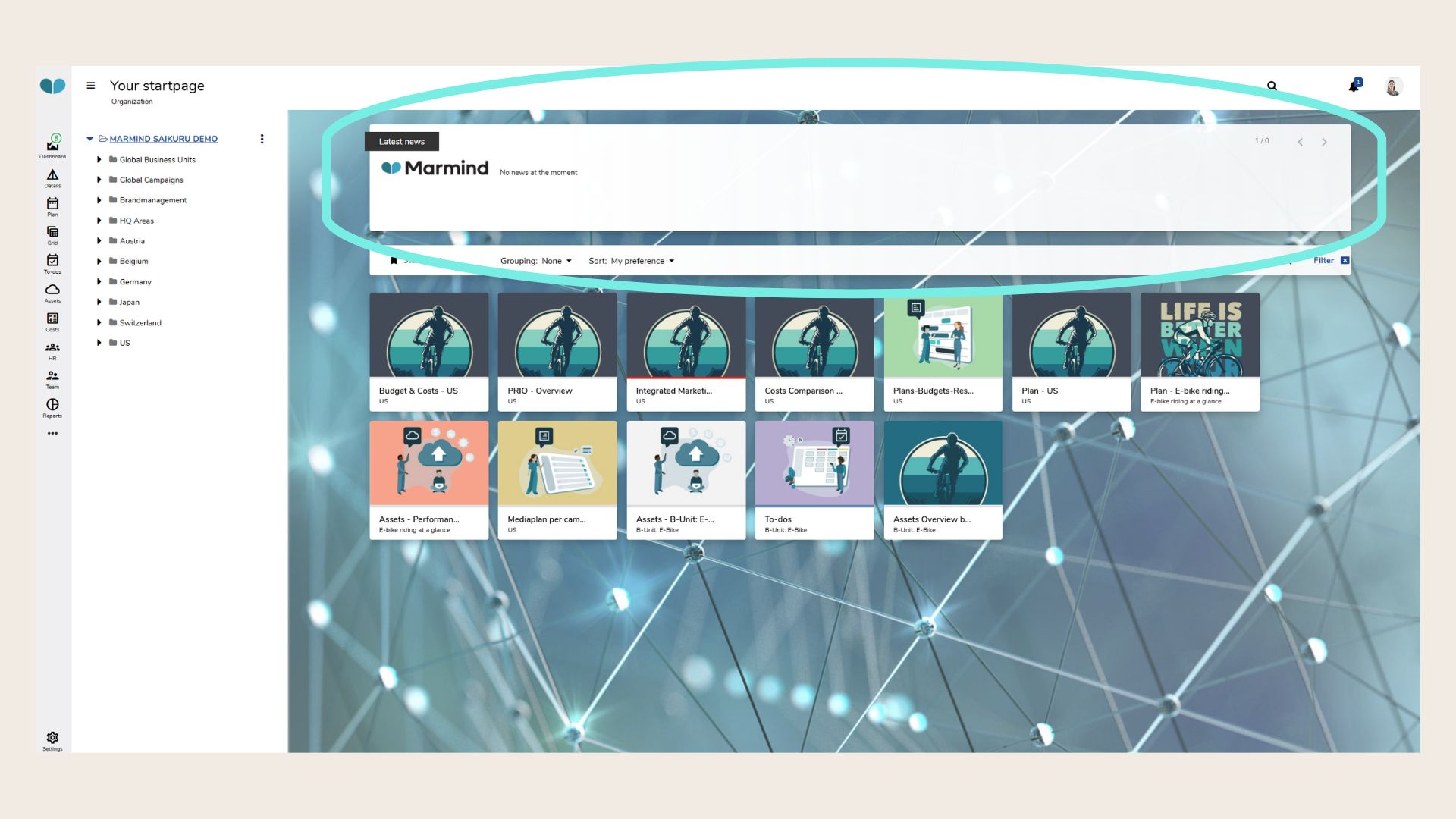
All active news are displayed on the Marmind start page (within their validity period).
To navigate to the start page, click the Marmind icon at the top left corner. The news are displayed on the top banner in the content area.
Create News
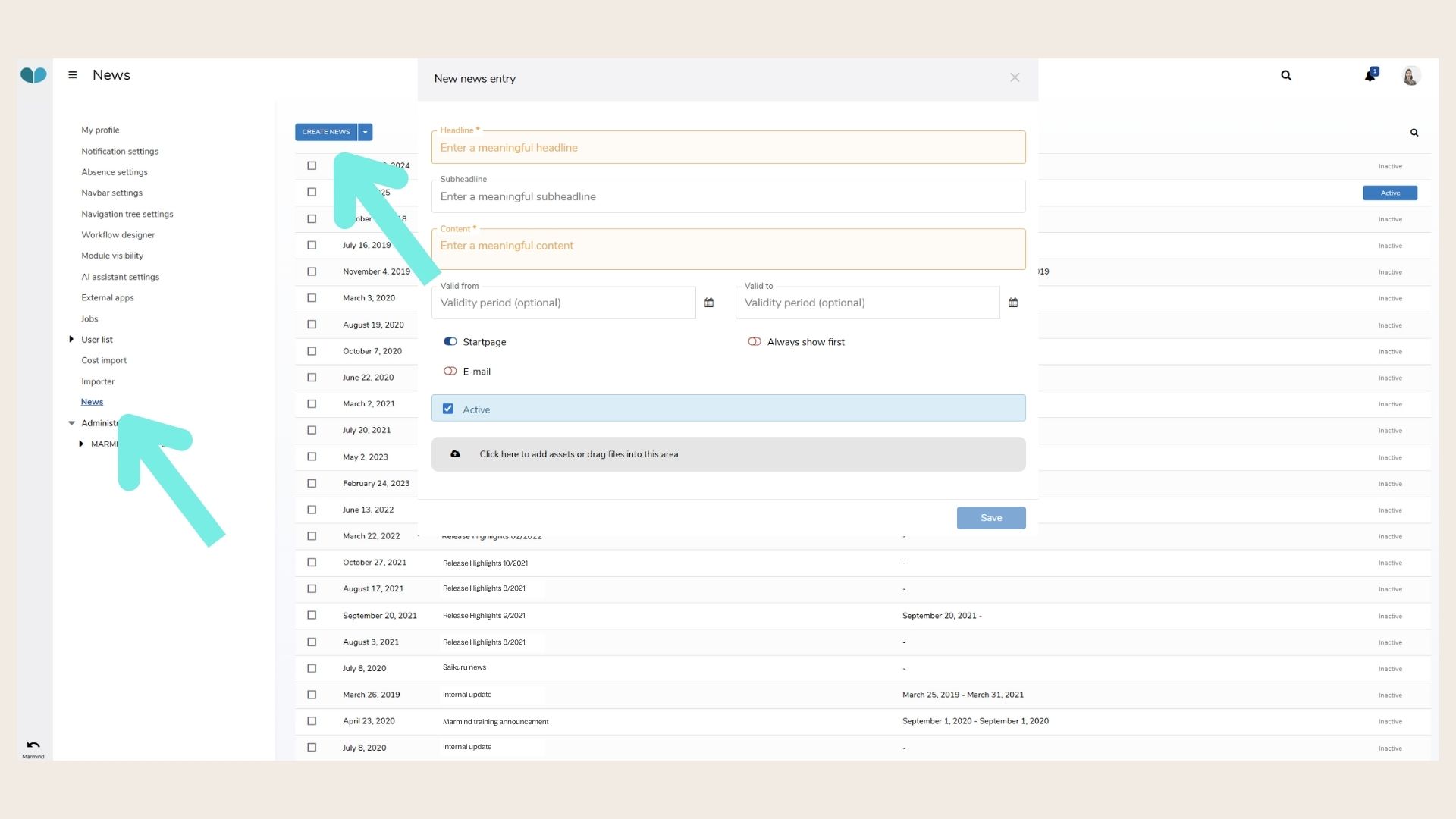
Go to the settings and navigate to “News”. Click the blue button at the top to “Create News”.
A headline and content are mandatory to publish your news. In addition, you can add a subheadline, define a validity period or add assets to the news.
Confirm your entry with “Save” and a new entry will be created and displayed in the list.
Editing a News Entry
You can edit a news entry at any time by clicking on the respective list entry.
Deactivating a News Entry
Deactivate a news entry by clicking on the “Active” checkbox when editing the news entry. If you have set a validity period, the news entry will disappear automatically after the selected date.
❓ FAQs