
📄 Summary: What You’ll Learn in This Article
This article explains how Marmind’s Budget and Cost workflows automate approvals for budgets, planned costs, purchase orders, and invoices, ensuring compliance with financial policies. It also covers key concepts like thresholds, variances, top-down vs. bottom-up planning, and best practices for managing budgets and forecasts.
-
Budget Workflow
-
Cost Workflow
-
Variance Tracking
-
Planning Approaches
-
Customisation
🧑🤝🧑 Who Should Read This?
This article is most useful for:
-
Planners – who create and manage campaign budgets, plan costs, and track variances.
-
Administrators – who configure workflows, approval thresholds, and cost approval rules to match company policies.
✔️ Prerequisites: What Should You Know Before Getting Started?
Level: Intermediate
Access required:
-
Reading rights for the Cost Module
-
Super-admin rights to change workflows.
-
To fully understand this article, the reader should already be familiar with a few Marmind basics:
-
Basic cost concepts – understanding planned, committed, and actual costs.
-
Budget structure – knowing how budgets are allocated in Marmind (e.g., top-down or bottom-up).
-
General approval processes – being aware that approvals in Marmind can be automated and tied to thresholds.
-
Budget and Cost Workflows: Purpose and Connection
Find more information about workflows in Marmind here: https://knowledgebase.marmind.com/kb/workflows-and-automation
The Budget workflow in Marmind automates the approval process for budgets and ensures that spending requests comply with company policies.
When budgets exceed a predefined threshold (e.g., €10 k), the workflow routes the request for financial approval; if below the threshold, it can auto‑approve. This standard workflow is typically activated by default on your instance. There is also a separate Cost workflow that governs the approval of planned costs, purchase orders and invoices; it is implicitly invoked when you plan costs and link invoices.
.jpg?cb=796cd65e5b4d2038314907e53edc3cba)
Marmind’s workflow engine allows non‑developers to design and modify these processes: you can configure rules for approving planned costs, purchase orders and invoices, and for matching invoices to planned values. Administrators can toggle budget approvals (e.g., “Should a workflow be used to approve budgets?”) and decouple planning from the planning area.
Key Concepts in the Budget Workflow
1. Budget vs. Forecast: The Seesaw
.png?cb=cdd01d2f84cbd717fad401182a7d0be5)
-
Budget (left side of the seesaw) – represents the allocated funds (the “wallets”). These typically come from finance or senior management. Budgets are usually set at higher levels (country or region) rather than per social‑media post or spend type.
-
Costs (right side) – include planned, committed and actual expenses. When summed across months and spend types, these costs form the forecast.
-
Variance – calculated as budget minus forecast. In MARMIND, this helps users see how much budget remains or whether they have overspent. A red variance simply indicates that no budget has been set for that line; it is not necessarily bad.
2. Standard Workflow Rules
-
Budget approval threshold – In the standard budget workflow, budgets above €10 k require financial approval, while lower amounts are auto‑approved (as stated in the workshop).
-
Cost workflow – runs behind the scenes when you plan costs and link invoices. It enforces the steps of planning, committing and actualising costs (see “Cost lifecycle” below).
-
Configuration – Workflow rules (thresholds, approvers, triggers) can be changed in the workflow designer without coding. You can also define who approves purchase orders and invoices (learn more about creating a workflow here: https://knowledgebase.marmind.com/kb/creating-workflows )
3. Top‑Down vs. Bottom‑Up Planning
-
Top‑down – Allocate budgets from the top of the tree (e.g., region or country) and break them down into campaigns and actions. You cannot skip a level; there must be no gaps.
-
Bottom‑up – Start planning costs at campaign level, but you cannot allocate less budget than the total of planned costs; again, no gaps are allowed. The system consolidates planned costs up to the level where the budget resides, so that the forecast matches the sum of all planned, committed and actual costs.
4. Forecast Grid and Variance Column
In the budget and cost grid (learn more about the Cost module here: https://knowledgebase.marmind.com/kb/cost-module )
-
Months/quarters – columns represent periods (depending on your planning period structure). For each spend type, planned costs entered per month roll up into the forecast.
-
Forecast – a separate column that sums all planned and actual costs across the row.
-
Budget – the allocated amount; appears in its own column, not tied to monthly cells.
-
Variance – a final column showing budget minus forecast. Green indicates underspend; red indicates either overspend or missing budget. Users can drill down to see which campaigns or spend types drive variances.
Cost Lifecycle and Workflow Integration
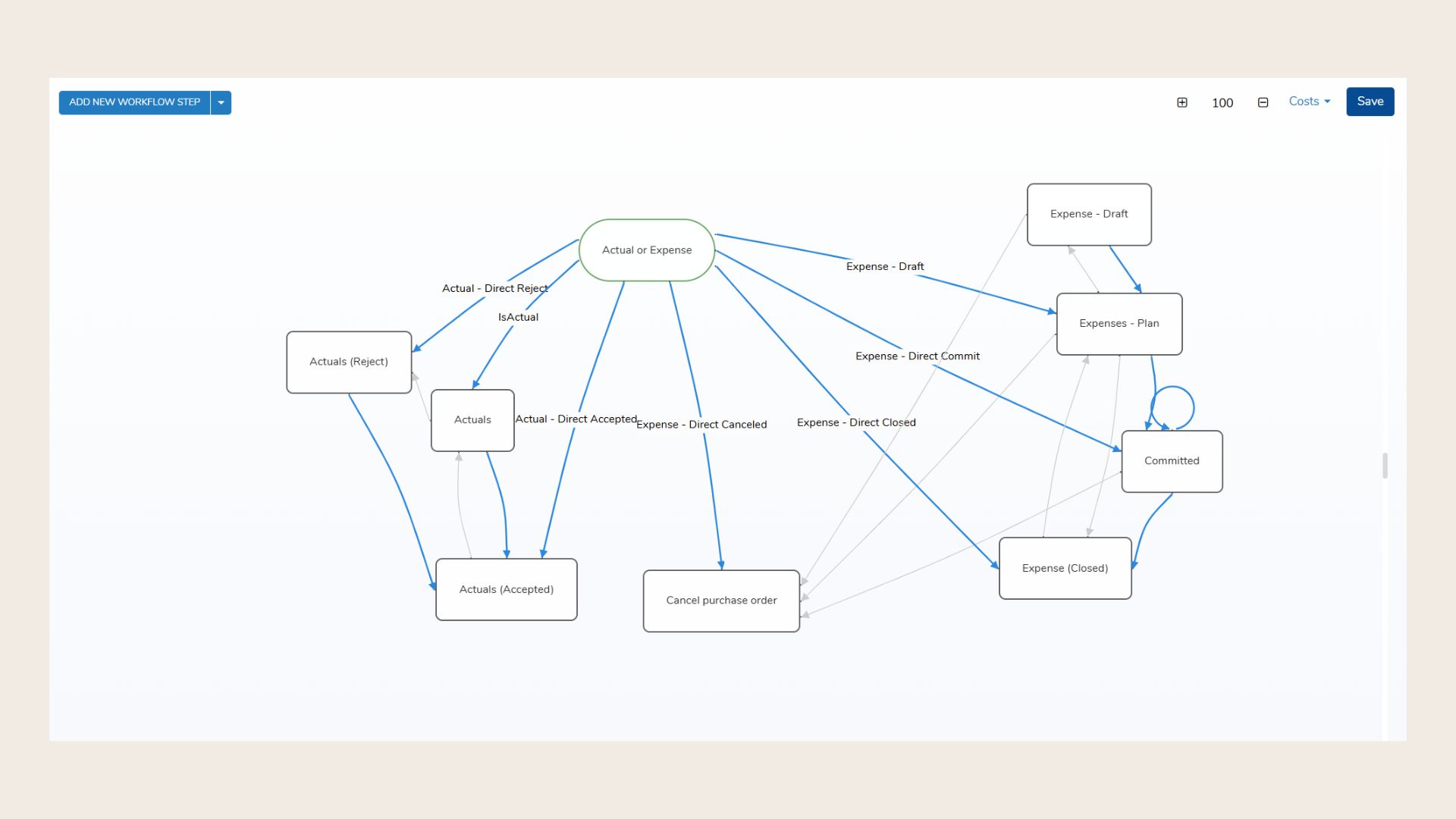
The cost workflow enforces the plan → commit → actual lifecycle:
-
Plan costs – Estimate expenses and classify them via spend types. These amounts appear in the monthly columns of the grid.
-
Commit costs – When a purchase order is raised, assign a vendor and trigger the approval (e.g., finance may need to approve a €20 k agency purchase order). A vendor is required; once committed, the cost status changes to committed.
-
Actual costs – When invoices arrive, record the actual amount. Marmind replaces the committed cost with an actual cost and closes the original item, retaining the history. Tolerances of 3–5 % automatically reconcile small differences.
-
Workflow triggers – Each step may trigger approvals or notifications defined in the cost workflow (e.g., purchase order approval, invoice matching).
Best Practices for Workflow Use
-
Set appropriate thresholds: Determine a realistic approval threshold (e.g., €10 k) based on your organisation’s risk tolerance and financial policies.
-
No gaps: Whether planning top‑down or bottom‑up, ensure that budgets and planned costs cover all nodes without skipping levels.
-
Use the workflow designer: Customise approval chains, notifications and conditions without code. You can require budget approvals, purchase‑order approvals or invoice approvals separately.
-
Monitor variances: Use the forecast and variance columns to identify overspend or underspend early and adjust allocations accordingly.
-
Educate campaign managers: Budgets are often high‑level; campaign managers should plan detailed costs that roll up to the budget. Encourage them to track spend regularly so that forecasts remain accurate.
❓ FAQs