
📄 Summary: What You’ll Learn in This Article
This article explains how to plan, allocate, and manage budgets in Marmind, including setting up planning areas, assigning rights, entering and distributing budgets, creating plan costs, and using workflows. It also covers the lifecycle of costs, forecast calculation, and the use of scenarios and bookmarks for flexible financial planning.
-
Tree hierarchy and planning areas
-
Setting rights and permissions for the cost module
-
Entering a budget
-
Workflows for Budget & Costs
🧑🤝🧑 Who Should Read This?
This article is most useful for:
-
Marketing managers and budget planners
-
Project and campaign owners responsible for financial allocations
-
Administrators configuring budget rights and workflows
✔️ Prerequisites: What Should You Know Before Getting Started?
Level: Intermediate
Access required: Budget & costs rights assigned in the admin area
-
Prior familiarity with the Marmind navigation tree and campaign structure is required.
Planning a Budget in Marmind
Budget planning in Marmind provides a structured way to allocate, monitor, and control marketing spend across workspaces, campaigns, projects, and actions. With its built-in hierarchy, rights management, workflows, and forecasting logic, Marmind ensures that budgets and costs are transparent, controlled, and aligned with organizational processes. This article explains how to plan a budget, assign it top-down, track actuals, and understand the lifecycle of costs.
High-Level Process
The budgeting process in Marmind follows four stages:
-
Budget planning: yearly, top-down, approval workflow.
-
Detailed costs planning: RFQs, offers, and orders; approval workflows.
-
Actuals handling: monthly invoice imports or manual entries.
-
Linking process: connecting actuals to committed costs, partial/final billing.
Throughout the process, forecasts are updated automatically.
Tree Hierarchy and Planning Areas
Budgets in Marmind are structured around planning areas, usually aligned to regions, countries, or departments. You can find this in the administration area:
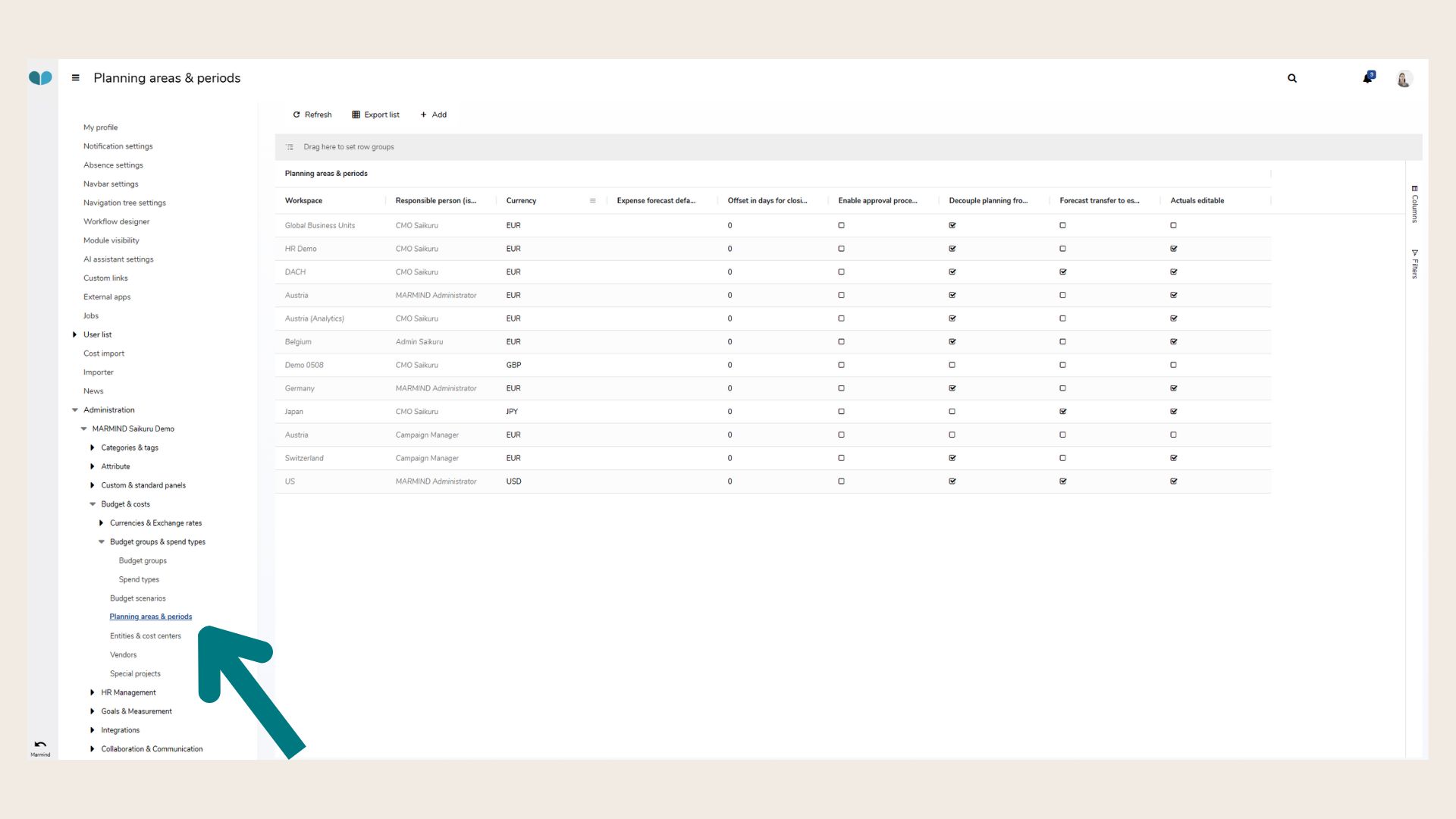
Each planning area defines key settings in the admin area, such as:
-
Lead currency
-
Budget groups and spend types
-
Cost centers
-
Planning period (yearly, quarterly, monthly, half-yearly)
-
Top-down vs. bottom-up planning logic
-
Forecast handling for the current month
-
Workflows (e.g., approval processes)
Within the navigation tree, you can drill down from workspace to campaigns, projects, and actions. Budgets and costs can be planned at all of these levels.
Rights and Permissions
Budget & costs rights are managed per user or group. Typical permissions include:
-
Plan budget
-
Enter costs
-
Allocate estimated costs
-
Read or edit imported costs
-
Read or edit estimated costs
These rights ensure that each user can only access and edit the budget elements relevant to their role.
Entering a Budget
-
Select the workspace or campaign in the navigation tree.
-
Click Costs in the module bar.
-
The budget & cost grid displays:
-
Budget groups (e.g., events, HR, online advertising, print media, tools & subscriptions).
-
Planning periods (e.g., FY2022).
-
Automatic totals at the bottom of the table.
-
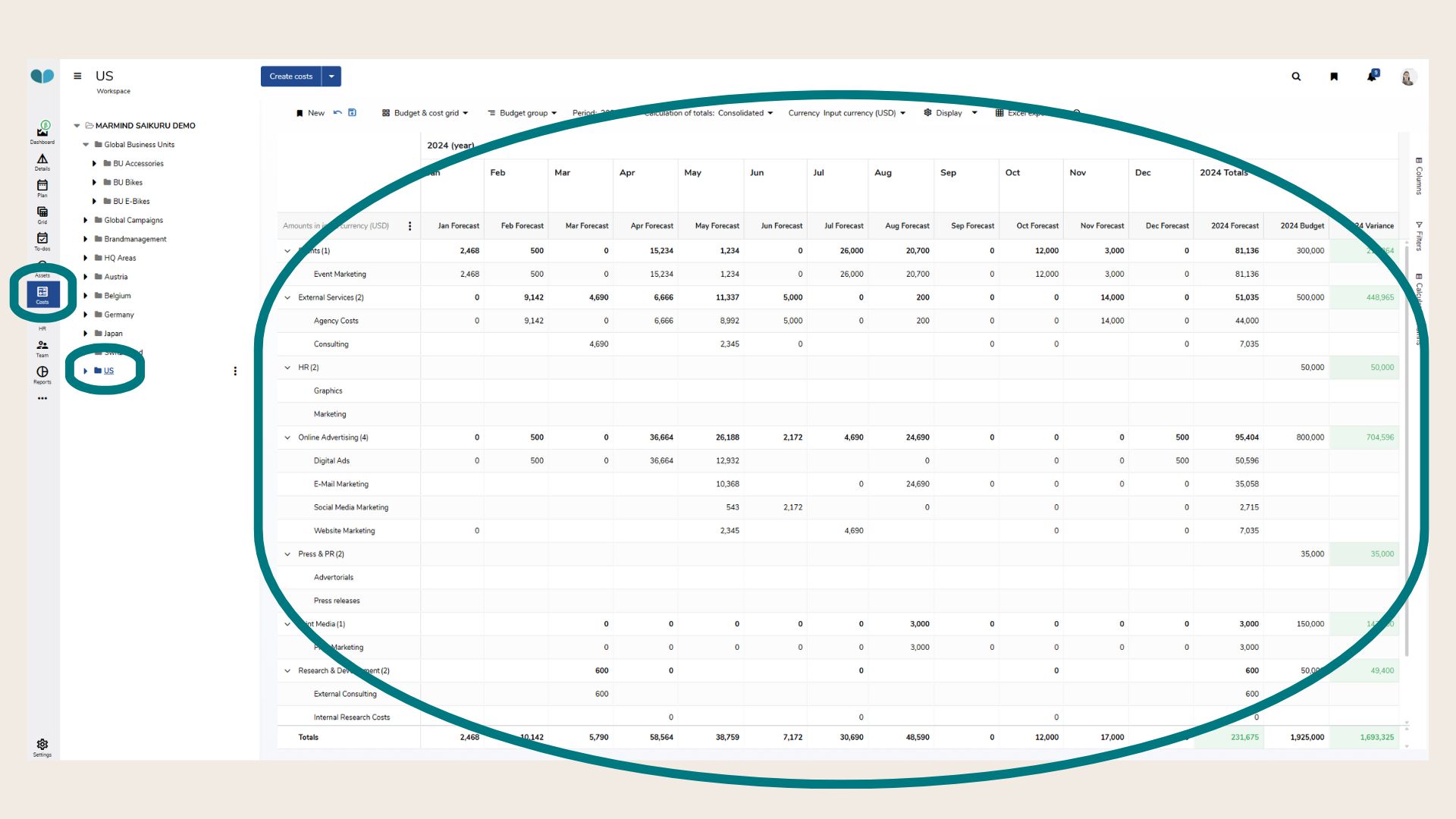
You can now enter amounts directly into the cells. Additional features are:
-
Commenting: Hover over a field and use the pencil symbol to add comments.
-
Saving: Confirm entries with the save option in the next steps menu.
-
Excel Export: Export budget tables for offline analysis.
Distributing Budgets Top-Down
Budgets can be assigned top-down from the workspace level to campaigns, projects, and actions. At each level, Marmind displays the remaining budget per group.
Depending on system settings, budget distribution can also be decoupled from campaign structures, offering more flexibility in allocation.
Creating Plan Costs
Once a budget has been assigned, you can create planned costs at campaign, project, or action level:
-
Define sub-accounts (e.g., media production, events).
-
Assign vendors, cost centers, or special projects.
-
Enter amounts in the relevant currency.
-
Add cost splits and tags if needed.
This allows you to link budgets with detailed financial planning.
Workflows: Budget and Costs
Workflows provide governance and control over financial processes. There are standard workflows available in the administrative area, which you can adjust, according to your specific needs.
-
Standard Budget Workflow:
-
Budgets above a defined threshold (e.g., ≥ 10k) require finance approval.
-
Smaller budgets can be auto-approved.
-
Approval settings are activated in the planning area.
-
-
Standard Costs Workflow:
-
Actuals and expenses move through defined states such as planned, committed, accepted, closed, rejected.
-
Workflows ensure costs are properly reviewed before being finalized.
-
Lifecycle of Costs
Costs in Marmind follow a clear lifecycle:
-
Planned expenses (e.g., actions not yet committed).
-
Committed expenses (e.g., vendor selected, quote received).
-
Closed expenses (at least one actual matched).
-
Actuals (imported from ERP or Excel files).
-
Allocation (to cost center owners).
-
Accepted actuals (validated and matched).
The linking process ensures actuals replace or reduce the planned/committed amounts.
Forecast Calculation
Marmind calculates forecasts based on:
-
Planned costs
-
Committed costs
-
Actuals
Key points:
-
Forecasts are updated automatically to reflect the most recent data.
-
Not all costs are included in forecasts (e.g., canceled costs); these can still be found in the Cost list view.
-
Forecast handling can be customized in the planning area settings.
Scenarios and Bookmarks
-
Multiple budget scenarios can be defined (e.g., optimistic, conservative).
-
Views and configurations can be saved and shared as bookmarks for easier access.
❓ FAQs