
📄 Summary: What You’ll Learn in This Article
This article explains how to create and manage actual costs in Marmind. Learn how to convert planned or committed costs into actuals, understand how Marmind automatically links invoices to cost items, and see how actuals impact your cost forecast and budget tracking.
-
Creating actual costs manually
-
Linking actuals to planned or committed costs
-
Managing partial invoices and remaining planned costs
-
Understanding forecast adjustments
-
Using Expert Mode for advanced forecasting insights
-
Reviewing actuals in the Cost List view
🧑🤝🧑 Who Should Read This?
This article is most useful for:
-
Marketing Operations Managers
-
Finance and Budget Managers
-
Project Managers
-
Administrators managing cost settings
-
Users responsible for campaign budgeting and invoice tracking
✔️ Prerequisites: What Should You Know Before Getting Started?
Level: Intermediate
Access required: Permission to edit actuals and manage expenses
-
Before getting started, you should:
-
Understand the difference between planned, committed, and actual costs
-
Have access to budget and expense management features
-
Be familiar with the Cost List and expense views in Marmind
-
Managing Actual Costs in Marmind
Marmind supports both:
-
Manual entry of actual costs
-
Automated imports through interfaces and integrations
This article focuses on the manual creation of actuals.
Actual costs are typically recorded when invoices or partial invoices are received from suppliers or vendors. By linking actuals to planned costs, teams can maintain accurate budget forecasts and improve financial transparency throughout campaigns and projects.
Creating Actuals from Planned Costs
When an invoice is received, actual costs can be created directly from existing planned or committed costs.
To create actuals:
-
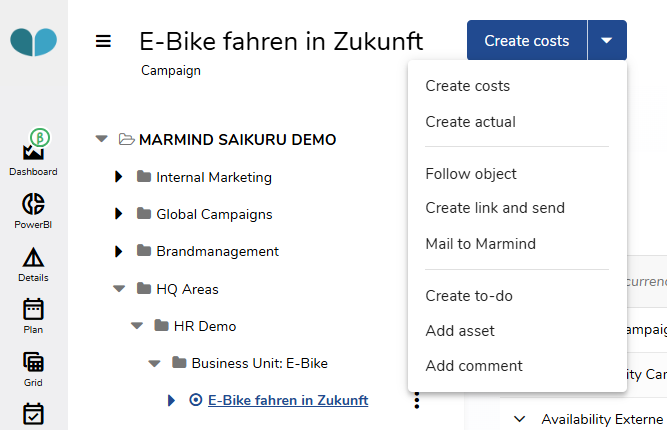
Open the Costs Module and select “Create Costs” when clicking the blue button at the top.
-
Click Create Actual from Cost at the bottom of the dialog
-
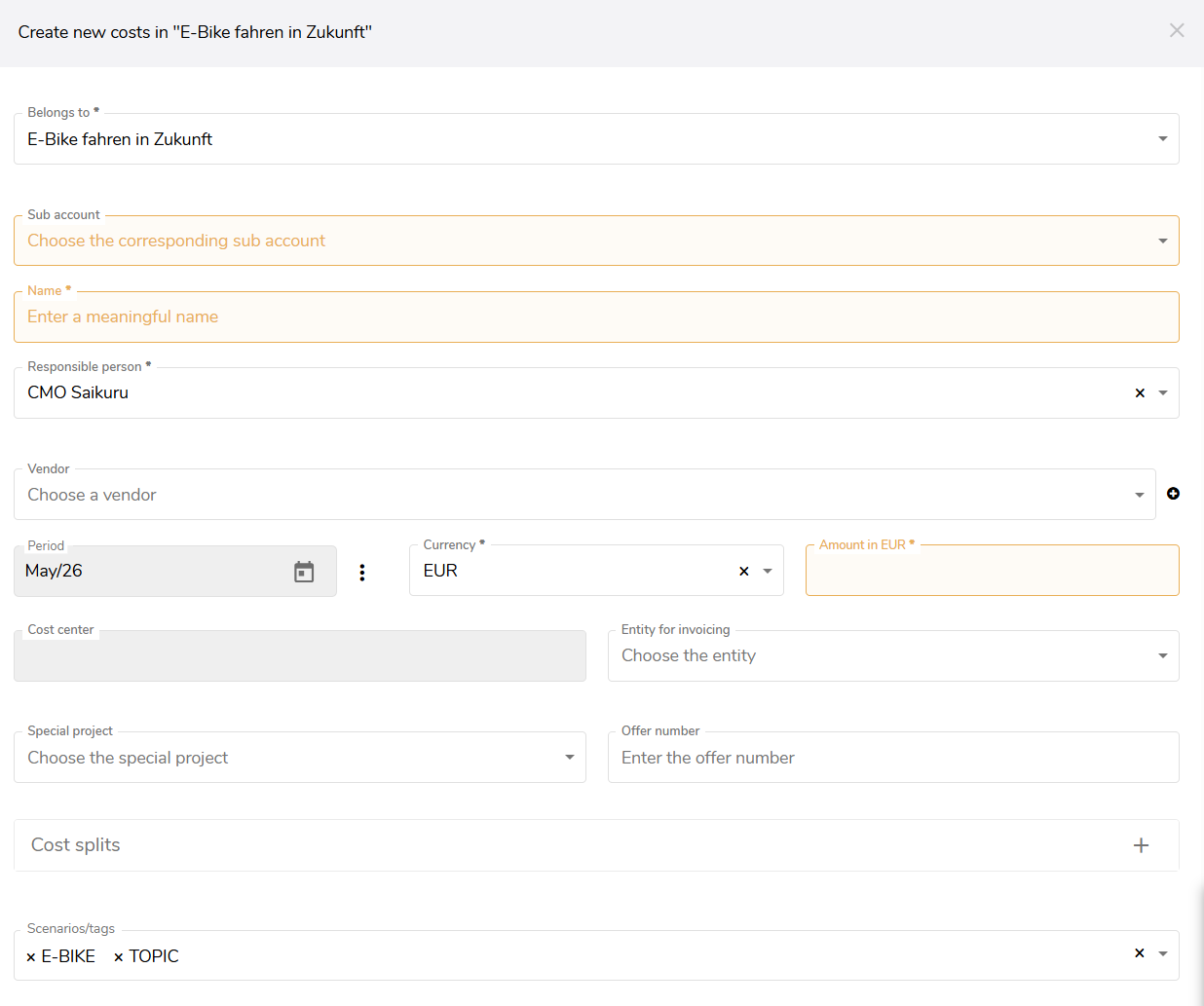
Enter at least:
-
Parent (context)
-
Currency
-
Period (order date)
-
Spend type
-
Name of the actual
-
Actual amount
-
-
Click Save
Because the actual is created directly from a selected planned or committed cost, Marmind links it to that cost automatically — no manual searching required. After saving, Marmind opens the Automatic forecast calculation dialog, where the new actual is shown alongside the cost it was created from, so you can decide how it affects your forecast (see Managing Partial Invoices below). To link further costs or review related expenses, use Expert Mode.
Important Requirement
The Create Actual from Cost button is only visible when all of the following apply:
-
the administrator has enabled the Edit Actuals setting for the finance area,
-
you have permission to edit (write) the cost, and
-
you have the Actuals Editor role.
If the button is missing, check these three conditions with your administrator.
Managing Partial Invoices
In many cases, suppliers send invoices in multiple installments. Marmind supports this workflow by allowing partial actuals to be linked to planned costs.
If the actual amount is lower than the originally assigned planned cost, Marmind asks how the remaining planned amount should be handled.
Marmind shows the prompt “Do you want to reduce the expense?”. Your answer — Yes or No — determines which of the two options below applies.
Option 1: Reduce the Planned Costs
Click Yes when prompted. Marmind closes the original expense and creates a new one for the remaining amount, which stays planned or committed.
If additional invoices are expected later, you can reduce the planned cost by the amount already received as an actual.
This means:
-
Part of the planned budget becomes an accepted actual
-
The remaining amount stays planned or committed
-
Additional actuals can still be assigned later
This approach is useful for:
-
Partial invoices
-
Ongoing supplier billing
-
Multi-phase projects
Option 2: Replace the Planned Costs
Click No when prompted. Marmind closes the expense and accepts the imported actual amount, replacing the planned cost entirely.
If no further invoices are expected, you can choose not to reduce the planned amount incrementally.
In this case, Marmind replaces the planned costs entirely with the actual amount.
This is useful when:
-
Final supplier costs are lower than expected
-
Discounts or negotiated pricing reduce the final expense
-
No additional actuals are anticipated
Using Expert Mode
For more detailed forecasting information, you can enable Expert Mode within the dialog.
Expert Mode provides additional insights into:
-
Forecast adjustments
-
Cost allocation impacts
-
Remaining planned values
-
Financial planning effects
This helps users better understand how actuals influence overall budget forecasts.
Important Note About Closing the Dialog
If the dialog is closed using the X button, the actual cost is still recorded in Marmind.
If the actual was created by mistake:
-
The entry must be manually rejected
-
Rejection is performed in the List of Expenses
Simply closing the window does not remove or cancel the actual cost entry.
Applying Actual Costs
After confirming the actual cost assignment by clicking Apply:
-
The forecast is updated automatically
-
Planned values are reduced accordingly
-
Accepted actuals appear within the financial overview
This ensures that forecasts always reflect the latest financial reality.
Viewing Cost Relationships in the Cost List
The relationship between:
-
Planned costs
-
Committed costs
-
Actual costs
can be reviewed in the Cost List view.
To improve visibility:
-
Open the Cost List
-
Select the grouping option:
-
Group: Vendor and Spend type
-
This view makes it easier to understand how actuals are connected to their corresponding cost positions.
Example of Forecast Adjustments
When actuals are linked and planned costs are reduced, Marmind automatically restructures the forecast.
Example:
-
Original planned cost: €15,000
-
Accepted actual: €3,000
-
Remaining planned cost: €12,000
Marmind then:
-
Closes the original planned cost position
-
Creates a new reduced planned/committed cost item
-
Records the actual cost as an accepted actual entry
This ensures financial tracking remains accurate and transparent.