
📄 Summary: What You’ll Learn in This Article
This article explains the standard Marmind–Censhare integration, including how Marmind tree objects and media assets are represented, linked, synchronized, and managed across both systems. It covers supported object types, metadata synchronization, Censhare and Marmind views, asset creation and linking, status synchronization, final status behavior, and rules for assets used in multiple places.
-
Tree objects and assets
🧑🤝🧑 Who Should Read This?
This article is most useful for:
-
This article is most useful for Marmind and Censhare administrators, integration consultants, solution architects, and technical users responsible for configuring, maintaining, or understanding the Marmind–Censhare connector, object mapping, metadata synchronization, asset handling, and workflow/status behavior.
✔️ Prerequisites: What Should You Know Before Getting Started?
Level: Intermediate
Access required: Marmind Admin access, Censhare Admin access
-
Basic understanding of Marmind and Censhare, including how marketing planning objects, media assets, workflows, metadata, and statuses are used in each system.
Overview
The standard Marmind – Censhare integration connects Marmind with Censhare so that marketing planning structures and assets can be linked across both systems.
It supports two main areas:
-
Tree objects: Marmind planning objects that are represented in Censhare and connected through a dedicated relationship.
-
Assets: Censhare media assets that can be selected, created, linked, and enriched with relevant Marmind information.
Tree Objects
Supported Marmind object types
The standard integration covers the following Marmind tree object types. They are represented in Censhare as assets with dedicated asset types. The default mapping is:
|
Marmind object |
Censhare asset type (technical name) |
Domain |
|---|---|---|
|
Workspace |
marmind.mpfolder |
root.marmind-internal |
|
Work package |
marmind.workpackage |
root.marmind-internal |
|
Organization root |
marmind.mprootfolder |
root.marmind-internal |
|
Channel |
marmind.advertisingmaterial |
root.marmind-internal |
|
Campaign |
marmind.initiative |
root.marmind-internal |
|
Action |
marmind.advertising |
root.marmind-internal |
Mapping existing Marmind tree objects to existing Censhare assets
To map existing Censhare assets to Marmind tree objects, the relevant Censhare asset types must first be added to the main HCMS schema. Once added, these asset types become available for selection in Marmind.
By default, the Marmind tree item schema is applied only to assets of the Marmind asset type or one of its sub-types, for example “Marmind.*”. To apply this schema to other asset types, update the configuration in the 121-marmind_tree_item-schema.json file.
    "cs:asset.type": [
        "marmind.*"
    ],
Add additional types below "marmind.*", for example:
    "cs:asset.type": [
        "marmind.*",
        "ASSET-TYPE.*"
    ],
ASSET-TYPE is an existing asset type that needs to be included.
Then you need to update Event-forwarder in Censhare Admin client.
To do so, go through below steps:
-
Go to Admin client--> Configurations-->Modules-->Event Forwarder -->Marmind Integration - Relation Change [Server=*, Roles=*]
-
Define new asset types in the “Asset filters“ section
-
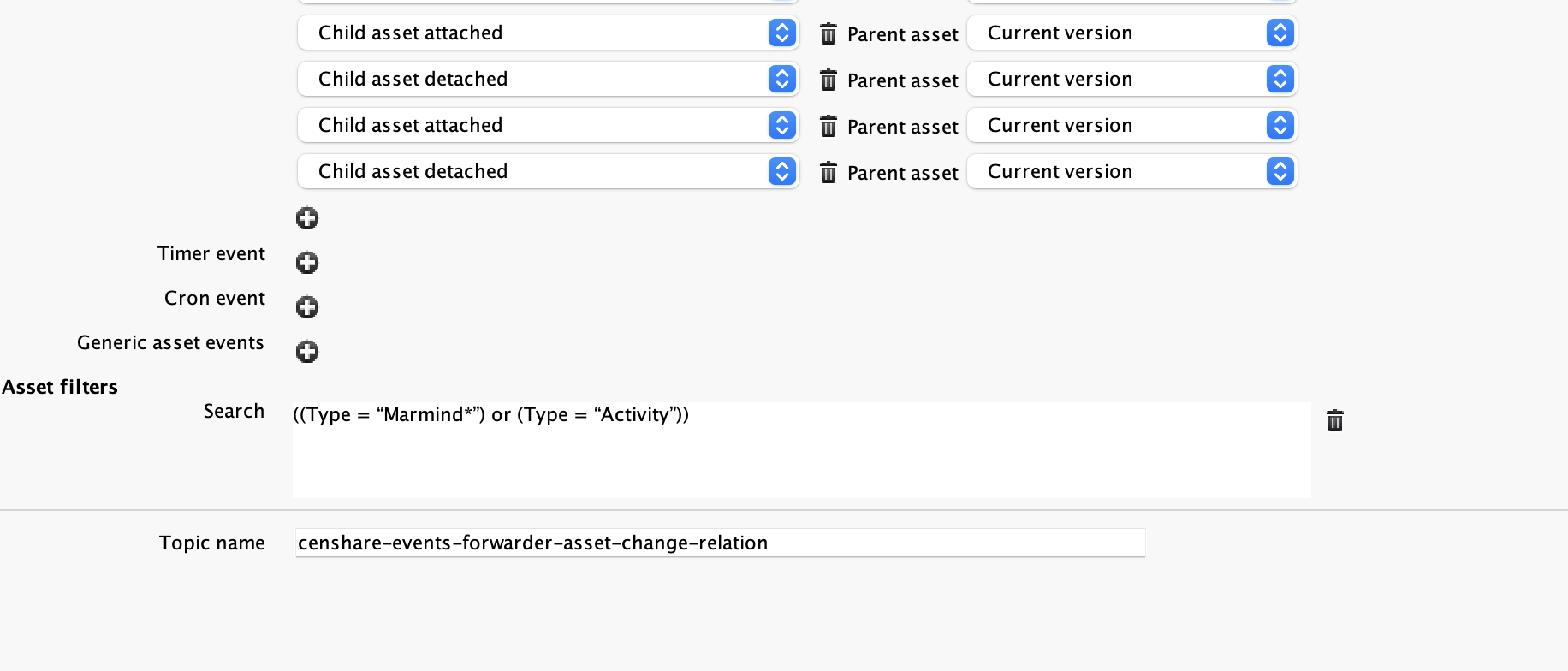
After updating the module, run “Update Server Configuration”
For more information, see
-
Getting started with schemas: HCMS First Steps
-
Understanding mixins in HCMS: Mixin section in HCMS Schema – Core
Constraints
-
After the mapping is configured, the Properties widget and the Marmind Properties widget become non-editable, meaning they are read-only in the Censhare UI. As a safeguard, two-way synchronization is supported for the standard and custom fields exposed in these widgets. This ensures that the data remains synchronized if any of these fields are modified through an API request, background automation, or integration.
-
Before enabling the mapping, the Censhare workspace setup must be evaluated to ensure that all workflows, automations, and integrations continue to work as expected after the object mapping is applied.
Metadata
Note: All tree object metadata sync is one-directional: Marmind → Censhare only.
Standard fields
The following standard fields are currently included for tree object synchronization:
|
Field |
Description |
|---|---|
|
Name |
The name of the Marmind tree object. |
|
Marmind number |
The Marmind object number, shown as the Marmind number in Censhare. |
|
Marmind status |
The current Marmind status of the object. |
|
Marmind type |
The type of Marmind object. |
|
Marmind ID |
The Marmind system ID of the object. |
Custom fields
Custom field synchronization for tree objects is supported by the standard connector package. However, there is no predefined or default set of custom fields that are synchronized.
The custom fields to be synchronized can be configured at any time after the connector is enabled. These fields are customer-specific. Custom properties must be added to the Censhare workspace.
For instructions on how to configure custom field synchronization with Censhare, refer to the following documentation:
[link]
Open in Censhare
The 'Open in Censhare' button opens the current tree object in Censhare in a new browser tab.
Censhare tree object view
For connected Marmind tree objects, Censhare provides customer-facing widgets that display Marmind-related information and relationships.
Included widgets:
-
Marmind properties
-
Related media - shows all child assets of a given Object Tree related with a user.marmind. relationship
-
Status
-
Marmind asset of - shows all parent assets of a given Object Tree related with a user.marmind. relationship
-
Assigned preview - shows main picture of the Object Tree from Marmind
Open in Marmind - The button opens the current tree object in Marmind in a new browser tab.
Status synchronization
Each tree object has two status fields:
-
Marmind status: set and managed in Marmind; visible as read-only in Censhare.
-
Censhare status: set and managed in Censhare; visible as read-only in Marmind but only after a status step is set in Censhare - until then this field is hidden.
Status changes in either system are propagated automatically to the other. Statuses can be updated manually or by a workflow configured in the respective system.
Assets
Asset creation and linking
The standard integration supports the following asset-related actions in Marmind:
-
Select assets from Censhare.
-
Upload new assets.
-
Create placeholder assets.
Metadata
Note: Media asset metadata, including standard and custom fields, is synchronized bidirectionally. Changes made in either system are propagated to the other.
Standard fields
The following standard asset fields are included:
|
Field |
Description |
|---|---|
|
Name |
The asset name. |
|
Workflow |
The related workflow information for the asset. |
|
Relation |
The relation between the asset and the connected Marmind object. |
|
Domain |
The Censhare domain information for the asset. |
|
File size |
The asset file size. |
|
File type |
The asset file type. |
|
Created by |
The user/system information associated with asset creation. |
|
Creation date |
The asset creation date. |
Each system keeps its own log of who performed an action. When an update is synchronized to the other system, the update is performed by the system user.
Custom fields
The standard package includes the following fields:
|
Field |
|---|
|
Does not expire |
|
Publish from |
|
Rights valid from |
|
Rights valid until |
Open in Censhare
The 'Open in Censhare' button opens the current media asset in Censhare in a new browser tab.
Censhare asset view
For assets, the standard integration includes the following Censhare widgets:
-
Preview
-
Properties
-
Marmind objects
-
Files
-
Status
-
Marmind properties - displays asset custom fields
Open in Marmind - The button opens the current media asset in Marmind in a new browser tab.
Preview generation
Asset preview in Marmind is generated by Censhare.
Status synchronization
Asset status synchronization allows media assets to be managed consistently across Marmind and Censhare while keeping the responsibility of each system clear.
The master asset status is governed by Censhare. Each Censhare asset has one workflow assigned to it, and the current workflow step is exposed to Marmind as the asset’s Censhare status. Marmind displays this status and keeps it synchronized with Censhare.
The Marmind status is separate. It reflects whether the asset is approved for use within the scope of a specific Tree Object. The Marmind status remains locked while the asset is still progressing through the Censhare workflow. It becomes editable only after the Censhare workflow reaches a configured final status.
Status updates are synchronized in both directions:
-
Censhare to Marmind: When the workflow step changes in Censhare, Marmind is notified and the Censhare status is updated.
-
Marmind to Censhare: When the Marmind status is updated in Marmind, Censhare is notified and displays the updated value as read-only information.
Censhare does not restrict its own workflow transitions based on the Marmind status. Status transitions in Censhare remain possible after any final status, whether positive or negative.
Censhare status in Marmind
In Marmind, the Censhare status field is shown on media assets and reflects the current workflow step of the related Censhare asset.
The workflow itself is assigned and managed in Censhare. Marmind only exposes and synchronizes the current workflow step.
Censhare workflow steps are customer-specific. To display the values correctly in Marmind, Censhare must provide a value list containing all workflow steps across all workflows in the Censhare system, regardless of asset type.
Marmind status in Censhare
In Censhare, the Marmind status is displayed as read-only information in the Marmind Objects widget.
For each Marmind asset reference, Censhare displays the current Marmind status. This status cannot be edited directly in Censhare. When the Marmind status is updated in Marmind, Censhare is notified and displays the updated value.
Final status configuration
Censhare statuses must be configured to define when the Marmind status becomes editable.
A final status is not necessarily the last step in a workflow. It is the point at which the Marmind editing policy changes. Because this cannot be inferred from the order of workflow steps, final statuses must be explicitly configured in Censhare.
There are three relevant Censhare status types:
-
Intermediate status: the asset is still progressing through the Censhare workflow. The Marmind status remains locked.
-
Final positive status: the asset has completed the Censhare workflow successfully. The Marmind status becomes editable, so users can manage campaign-specific approval in Marmind.
-
Final negative status: the asset has completed the Censhare workflow with a negative outcome. The Marmind status remains locked, and asset updates from Marmind are blocked.
Editing behavior by Censhare status
|
Censhare status type |
Marmind asset updates |
Censhare asset updates |
Marmind status updates |
|---|---|---|---|
|
Intermediate status |
Allowed. If the asset is used in more than one place, the user must confirm that the update will be applied to all references. |
Allowed. Binary and metadata updates are propagated across all references. |
Disabled. Users cannot progress the Marmind status. |
|
Final positive status |
Allowed. If the asset is used in more than one place, the user must confirm that the update will be applied to all references. |
Allowed. Binary and metadata updates are propagated across all references. |
Enabled. Users can progress the Marmind status. |
|
Final negative status |
Not allowed. Binary uploads and metadata changes are blocked in Marmind. |
Allowed. Binary and metadata updates are propagated across all references. |
Disabled. For past campaigns, the Marmind status is preserved. For current and future campaigns, the Marmind status is reset to the initial status. |
Updates to assets used in multiple places
If an asset is referenced in more than one place, updates made in Marmind are applied to all references of that asset.
Before the update is made, the user must explicitly confirm that the change should be applied everywhere the asset is used.
Confirmation message shown to user:
This asset is used in
<x>other places. Your update will be applied everywhere it is used. Do you want to continue?
Available actions:
-
Confirm
-
Cancel
If the user does not want to update all references, they can upload the file as a new asset instead. In that case, no link is created between the existing asset and the newly uploaded asset.
Campaign-specific behavior for final negative statuses
When a Censhare asset reaches a final negative status, Marmind status handling depends on the related campaign period:
-
For past or finished campaigns, the existing Marmind status is preserved.
-
For current or future campaigns, the Marmind status is reset to the initial status.
A campaign is considered past or finished when its validity period is populated with dates in the past.