
📄 Summary: What You’ll Learn in This Article
This article explains how Marmind's organizational hierarchy is represented in Censhare, and how the two systems stay in sync at the structural level.
-
Domain level integration
-
User application
-
Admin application
🧑🤝🧑 Who Should Read This?
This article is most useful for marketing teams, campaign managers, product owners, and digital asset managers who work with both Marmind and Censhare. It’s especially relevant for users responsible for uploading, managing, or referencing assets in Marmind, and for admins or IT staff setting up the integration, permissions, and SSO configuration.
✔️ Prerequisites: What Should You Know Before Getting Started?
Level: Intermediate
Access required: You will only be able to see this option if your company is using the Censhare integrator.
-
To get the most out of this article, readers should have basic familiarity with Marmind and Censhare and be able to navigate both systems.
For Users
What is the domain-level integration?
Every Marmind tree object - organization root, workspace, campaign, project (channel), action, and work package - can be represented as a corresponding asset in Censhare. This lets Censhare users navigate the Marmind campaign structure, see which media assets belong to which campaign context, and assign assets to Marmind objects directly from within Censhare.
In Marmind: Creating a tree object in Censhare
Each Marmind tree object has a Create in Censhare action, available in the object header. When this action is triggered:
The tree object is created as an asset in Censhare. The asset type used depends on whether a mapping has been configured for that object type and category combination:
-
No mapping configured: The standard Marmind representation is used: for example, a Campaign in Marmind becomes a "Marmind Campaign" asset in Censhare.
-
Mapping configured: The mapped Censhare asset type is created instead of the standard Marmind type.
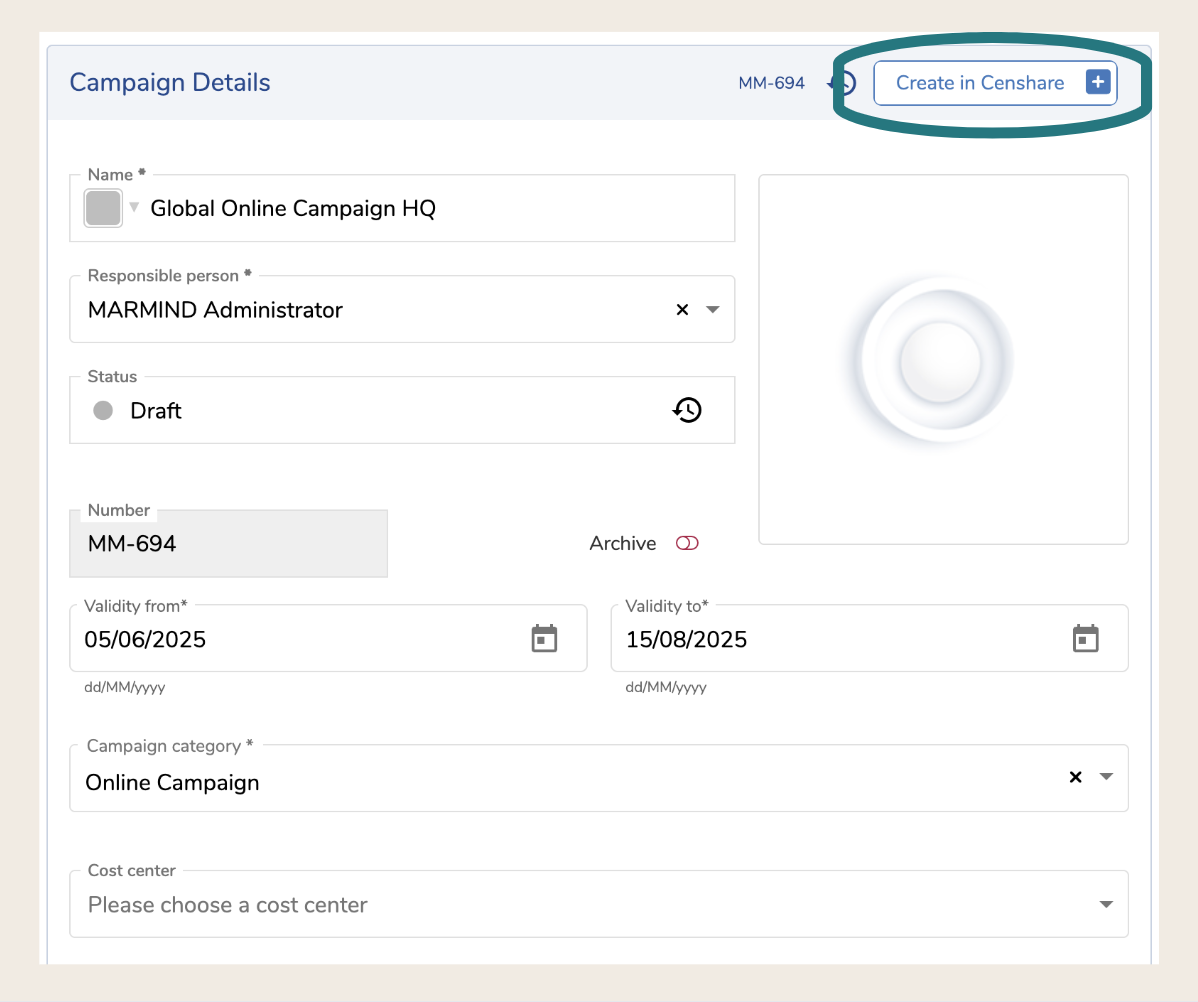
In both cases above, all parent objects up to and including the organization root are also created in Censhare with the correct parent-child relations between them, unless they have already been created by a previous "Create in Censhare" action on another object.
Parent-child relations in Censhare mirror those in Marmind exactly.
Once a tree object has been created in Censhare, the Create in Censhare button is replaced by the Censhare logo icon:
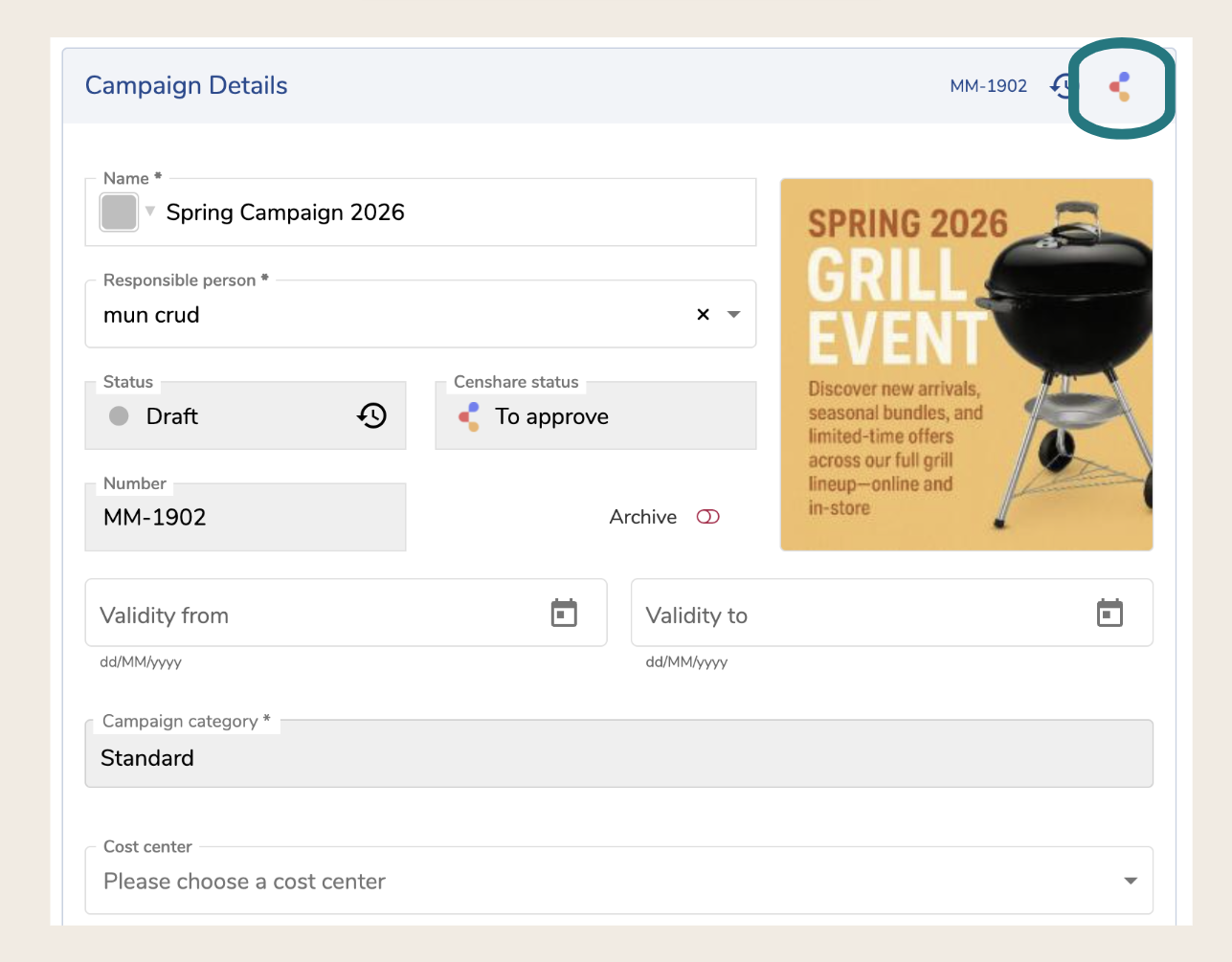
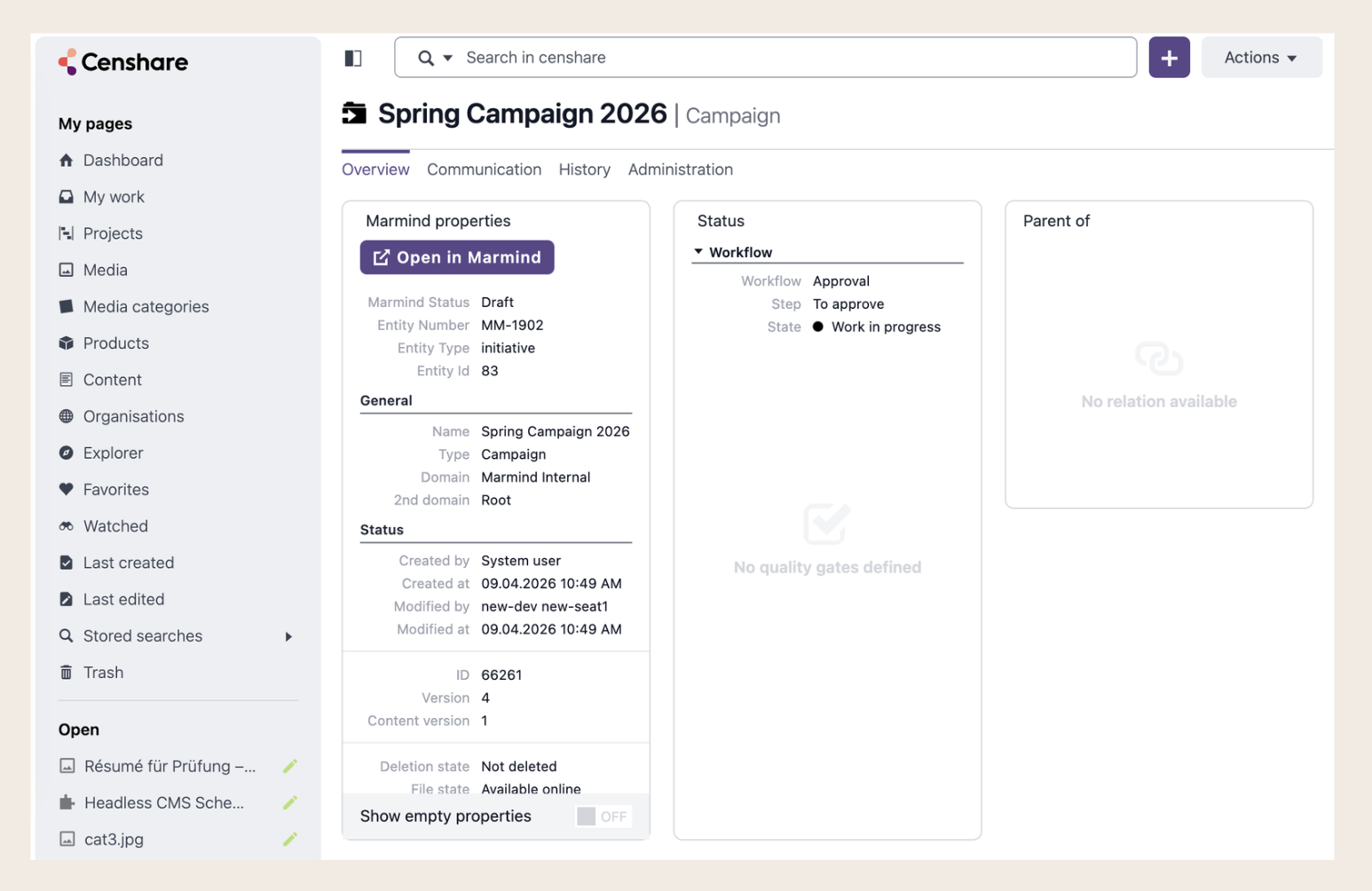
Clicking the icon opens the object directly in Censhare in a new tab:
Once a tree object has been created in Censhare, there is no option to remove it from Censhare without deleting the object in Marmind. Deletion in Marmind triggers deletion in Censhare automatically.
Automatic hierarchy creation on asset upload
When a media asset is uploaded or assigned to a Marmind context (e.g., a campaign), the integration automatically creates the corresponding tree object assets in Censhare and establishes the correct parent-child relations without requiring the user to manually trigger Create in Censhare on each parent object first.
Metadata synchronization
The following tree object metadata is synced to Censhare:
-
Standard fields (always synced):
-
Name (the Marmind object name)
-
-
Custom fields (optional): Any custom fields configured on the tree object and mapped to a corresponding Censhare field are also synced.
Note: All tree object metadata sync is one-directional: Marmind → Censhare only.
Status synchronization
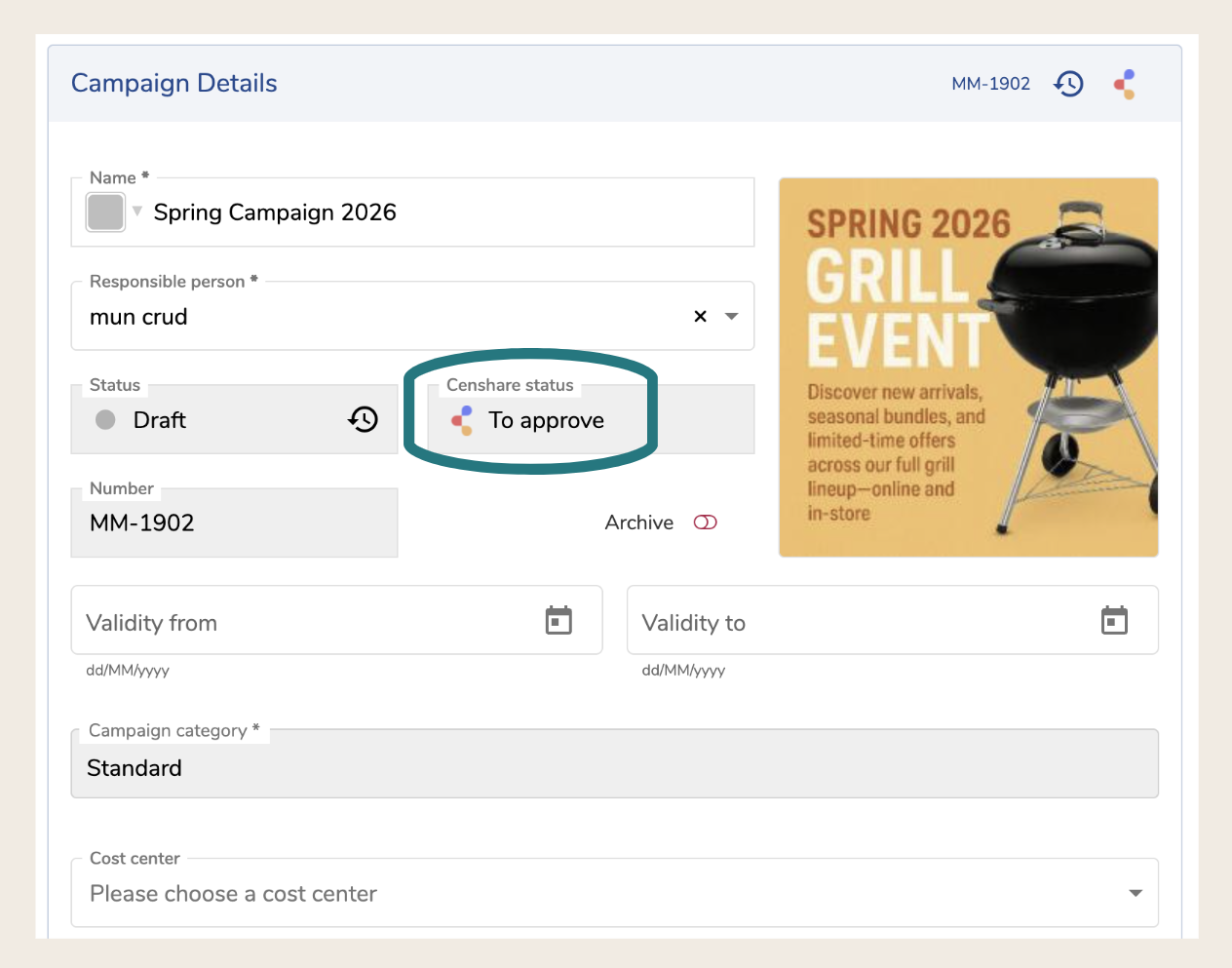
Each tree object has two status fields:
-
Marmind status: set and managed in Marmind; visible as read-only in Censhare.
-
Censhare status: set and managed in Censhare; visible as read-only in Marmind, displayed after the Marmind status field.
Status changes in either system are propagated automatically to the other. Statuses can be updated manually or by a workflow configured in the respective system.
Deleting a tree object
When a tree object is deleted in Marmind:
-
The object is deleted in Censhare.
-
Media assets that were assigned to this object remain in Censhare — they are not deleted. Their reference to the deleted object is removed.
What Censhare users see
Censhare users can navigate the Marmind hierarchy as a set of linked assets. Each Marmind tree object asset in Censhare is read-only — relations and content (metadata) cannot be modified from within Censhare. Changes must be made in Marmind and are then pushed to Censhare automatically.
The following widgets are available in Censhare for Marmind tree object assets:
-
Marmind properties: read-only metadata widget showing the object's Marmind properties
-
Custom properties: read-only widget displaying custom Marmind metadata fields. This widget is optional and only appears if custom fields have been configured for this object type. The fields shown vary depending on the customer's specific configuration.
-
Parent of — relation widget listing the child media assets linked to this object via the Marmind relation type
For Administrators
How tree objects are represented in Censhare
Marmind tree objects are stored in Censhare as assets with dedicated asset types. The default mapping is:
|
Marmind object |
Censhare asset type (technical name) |
Domain |
|---|---|---|
|
Organization root |
marmind.mprootfolder |
root.marmind-internal |
|
Workspace |
marmind.mpfolder |
root.marmind-internal |
|
Campaign |
marmind.initiative |
root.marmind-internal |
|
Channel |
marmind.advertisingmaterial |
root.marmind-internal |
|
Action |
marmind.advertising |
root.marmind-internal |
|
Work package |
marmind.workpackage |
root.marmind-internal |
All tree object assets are assigned to the root.marmind-internal domain by default. This makes them visible to all users in Censhare. To prevent accidental modification, configure Censhare Permission Sets and Roles to grant regular users read-only access to this domain.
Each asset in Censhare carries the following attributes set by Marmind:
-
Entity reference (e.g.,
initiative:1341) — enables the link back to Marmind -
Asset type matching the Marmind object type
-
Asset title (the Marmind object name — read-only in Censhare, synced from Marmind only)
-
Marmind display ID (e.g.,
MM-123)
Mapping tree object types and categories to Censhare asset types
By default, each Marmind object type maps to a standard Marmind asset type in Censhare. You can override this to map specific Marmind object type + category combinations to custom Censhare asset types.
Supported use cases:
Different categories of the same object type can map to different Censhare asset types:
|
Marmind |
Censhare |
|---|---|
|
Campaign + Category A |
Campaign asset type 1 |
|
Campaign + Category B |
Campaign asset type 2 |
Multiple categories can also map to the same Censhare asset type:
|
Marmind |
Censhare |
|---|---|
|
Campaign + Category A |
Campaign asset type 1 |
|
Campaign + Category B |
Campaign asset type 1 |
Important constraints:
-
A single Marmind object type + category combination cannot map to more than one Censhare asset type.
-
Mappings cannot be modified after objects have been created using that combination. Verify your selection before saving.
-
Once a tree object is synced with Censhare, its category field becomes read-only in Marmind.
-
This configuration is not supported for Channel (advertisingmaterial).
To configure the mapping:
-
Navigate to Administration → Categories and tags.
-
Select the object type: Workspace, Campaign, or Action.
-
Select an existing category or create a new one.
-
Open the category and scroll to the Censhare asset type section:
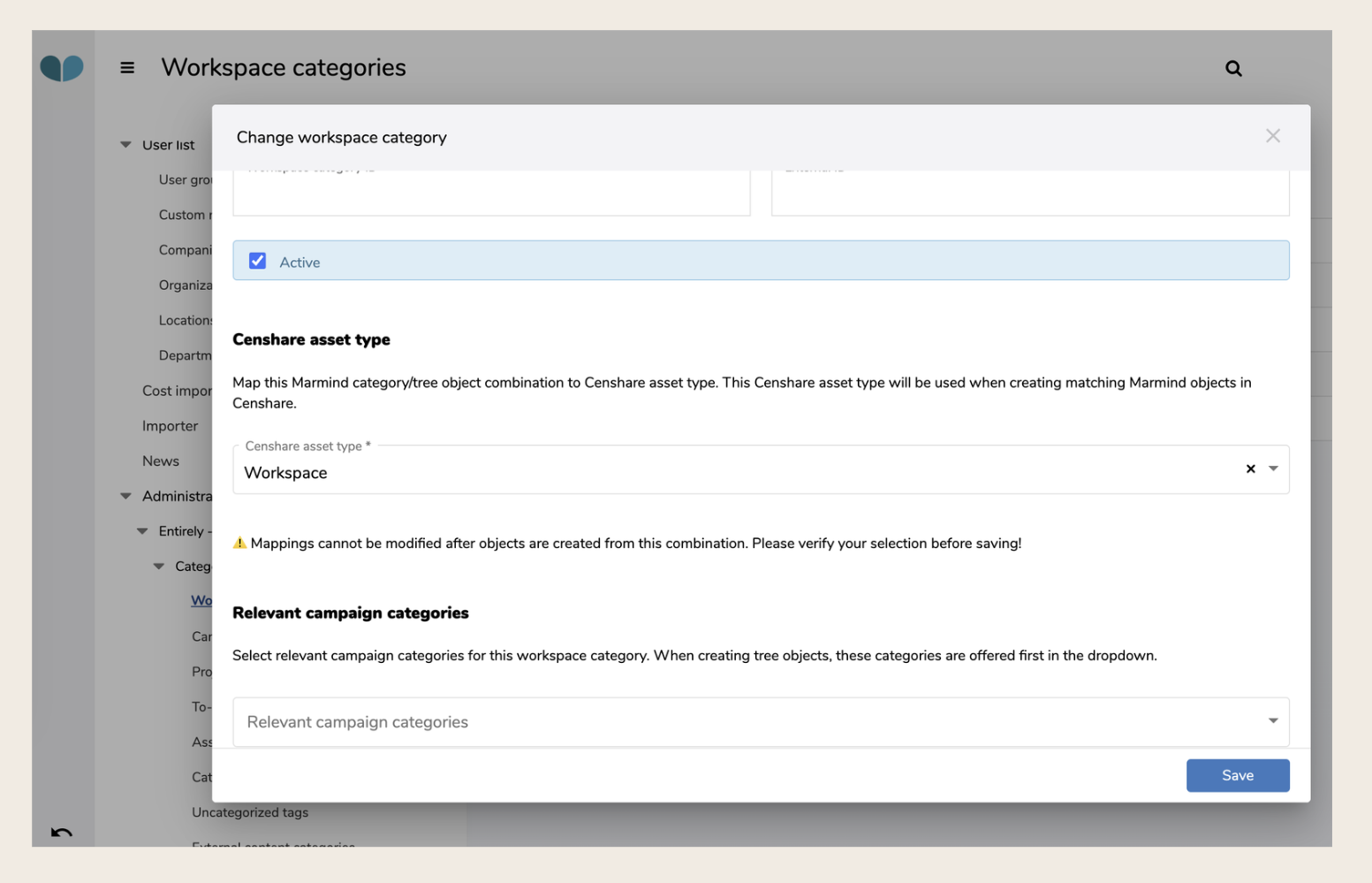
-
Select the appropriate Censhare asset type from the dropdown.
-
Click Save.
Relations between tree objects in Censhare
All parent-child relations in the integration use a dedicated relation type created specifically for Marmind–Censhare.
Relations are created, updated, and deleted by Marmind. They cannot be modified from within Censhare. When a parent-child relation changes in Marmind, the connector pushes the update to Censhare directly.
Excluding object types from sync
Currently all Marmind tree object types are synced to Censhare. Excluding specific types is not supported, as this would break parent-child relations — for example, excluding workspaces would cause campaigns to appear in Censhare without their correct parent context.
Censhare workspace configuration for tree objects
The Marmind–Censhare integration includes dedicated workspace pages for Marmind tree object assets. You can customize these pages using standard Censhare workspace configuration tools (Censhare Admin Client).
The following widgets are provided for tree object assets and can be added to workspace pages:
-
Marmind properties — read-only metadata widget
-
Custom properties — read-only widget for custom Marmind properties
-
Parent of — relation widget displaying child media assets
For more information on workspace and widget configuration in Censhare, refer to the Censhare documentation (Partner login required): Workspace configuration, Manage widgets, Assets in the standard workspace.
Extending tree object synchronization with custom metadata
To add custom metadata fields to tree object synchronization, use the provided mixin schema:
002-custom_extension_marmind-schema.json
This file is located in:
censhare-Custom/censhare-Server/app/modules/hcms/schemas
Do not modify the core HCMS schemas directly - this can break the integration. use only the provided mixing schemas to extend synchronization.
After updating the mixin schema, apply the changes to the Censhare server via Git (see: Deploy custom configuration changes to a Censhare Cloud instance).
On the Marmind side, configure the corresponding custom fields via custom panels (see Part 2, Admin section: Configuring custom panels and metadata sync).