
📄 Summary: What You’ll Learn in This Article
This article explains how to use and manage the To-Do Module in Marmind. You’ll learn how to switch between List View and Board View for task management, create and edit to-dos for different objects like campaigns or projects, use grouping, filtering, and searching to get a clear overview and customize task attributes like priority, responsibility, and deadlines.
-
Different Views of the Module
-
Creating and editing a To-Do
🧑🤝🧑 Who Should Read This?
This article is most useful for:
-
Marketing Managers, Project Managers, and Team Leads coordinating tasks within Marmind
-
Anyone responsible for planning, tracking, or reporting on team activities
✔️ Prerequisites: What Should You Know Before Getting Started?
Level: Easy
Access required: You need access to the Marmind To-Do Module and at least editor rights for the relevant object (workspace, campaign, project, or action)
-
Basic understanding of how to navigate Marmind and use the object structure (e.g., selecting projects, campaigns, etc. is needed
Choose View of the To-Do Module
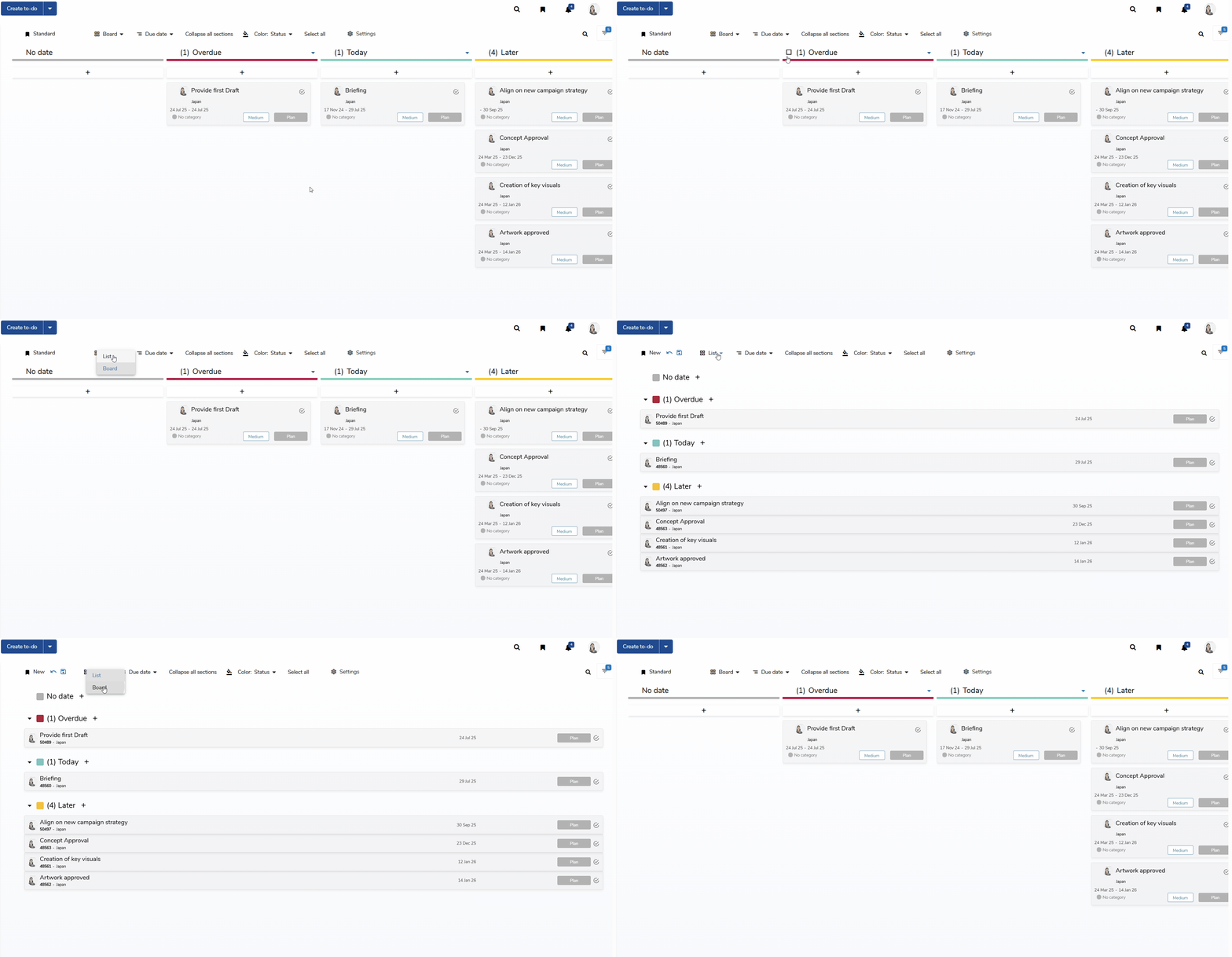
In Marmind, you can switch between two options of views when it comes to the To-Do Module: The List View or the Board View. To do so, click on the respective view in the header next to the bookmarks:
-
List View displays tasks in a structured, tabular format. This is ideal for detailed overviews, sorting, and filtering across attributes like status, priority, or due date.
-
Board View presents tasks in a Kanban-style layout: organized into columns by status or category. This is perfect for visualizing workflow and using drag & drop for status updates. In addition to the list view, you can select what information should be displayed in the To-Do cards.
Create a To-Do
In Marmind, you can create to-dos within any object—workspace, campaign, project, or action—to help structure tasks clearly and coordinate their timely completion.
How to Create a To-Do
-
Select an object from the navigation tree (e.g. a campaign or project).
-
In the left-hand navigation bar, click on the “To-dos” section.
-
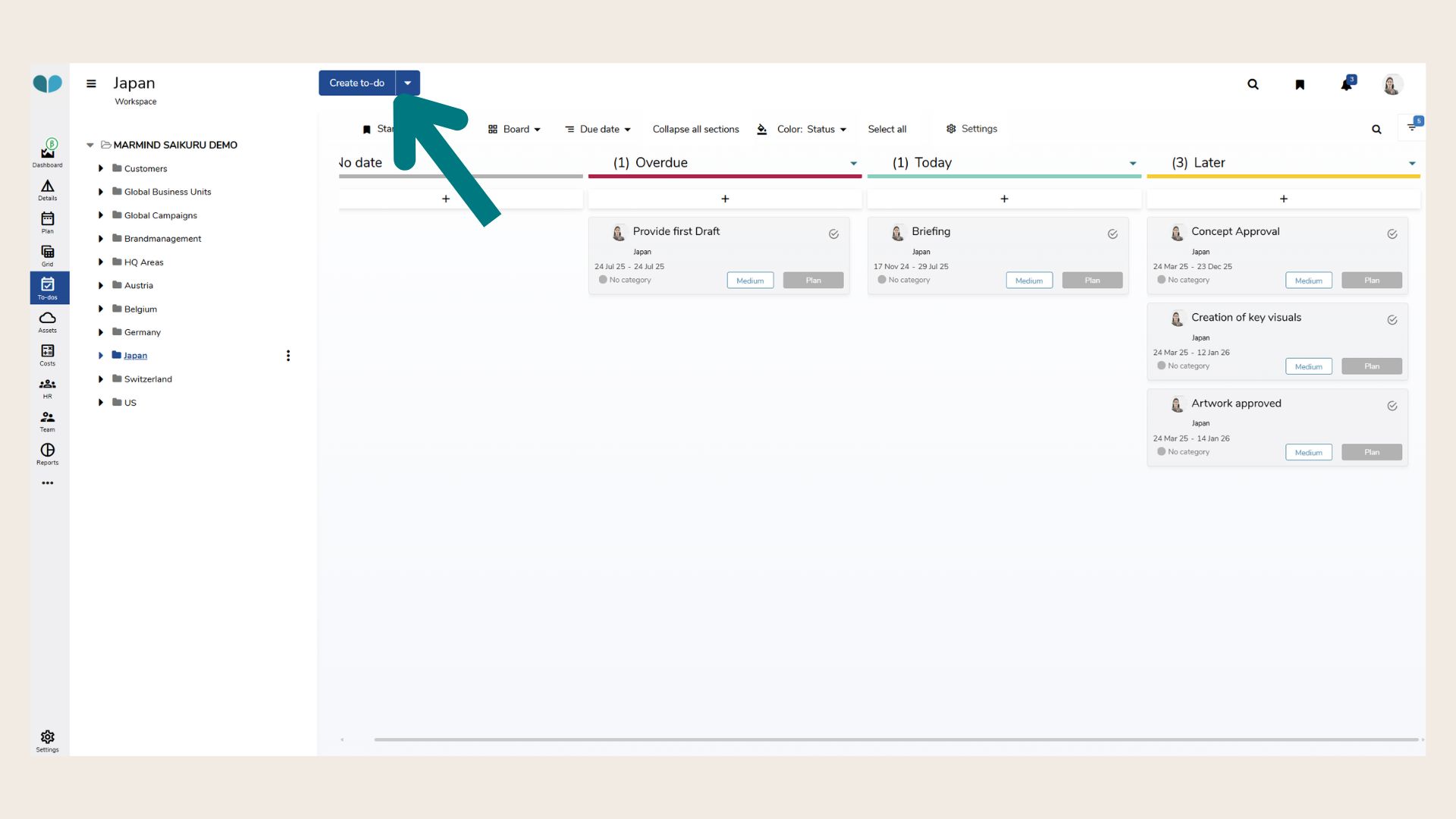
In the header of the next steps area, click “Create to-do” to add a new task.
-
Alternatively, you can select a to-do checklist to reuse a predefined set of tasks.
-
To-Do Details
When you click “Create to-do” in the drop-down menu, a form will open where you can define:
-
Subject
-
Belongs to (linked object)
-
Responsible person and Participants
-
Time period (from – to)
-
Description
-
Status
-
Priority
-
Category
-
Tags
You can also:
-
Attach files directly to the to-do
-
Convert a to-do into a milestone
-
Mark the critical path
All team members associated with the selected object can view the to-dos.
Edit a To-Do
Instead of using the overview to edit a To-Do, you can open an individual To-Do and make more detailed changes. Click on the To-Do and a window will open with several options:
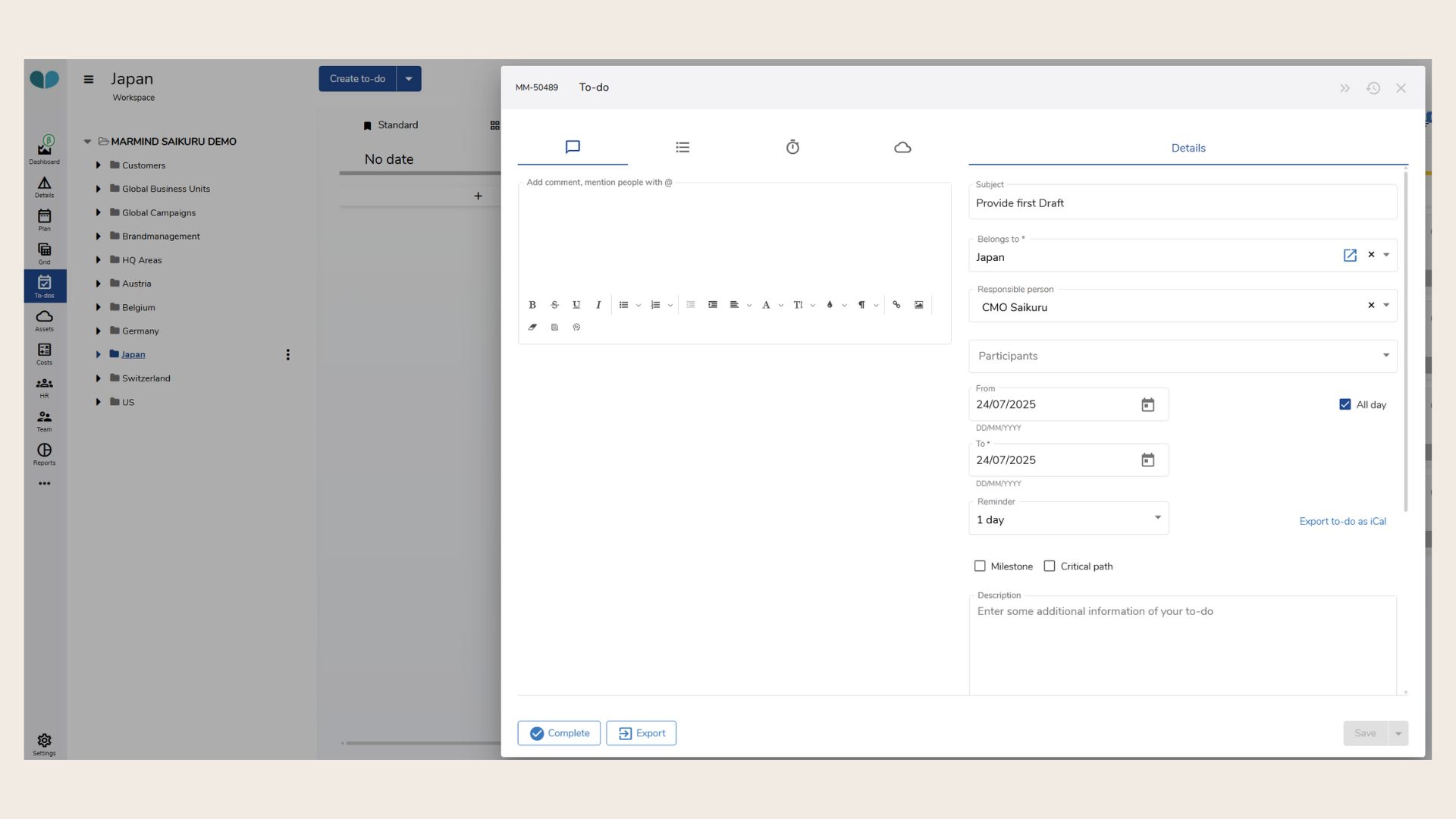
Similar to objects, To-dos in Marmind can also be assigned a status. The following status presets are defined per default:
-
Plan
-
In Progress
-
Issue
-
On hold
-
Completed
-
Obsolete
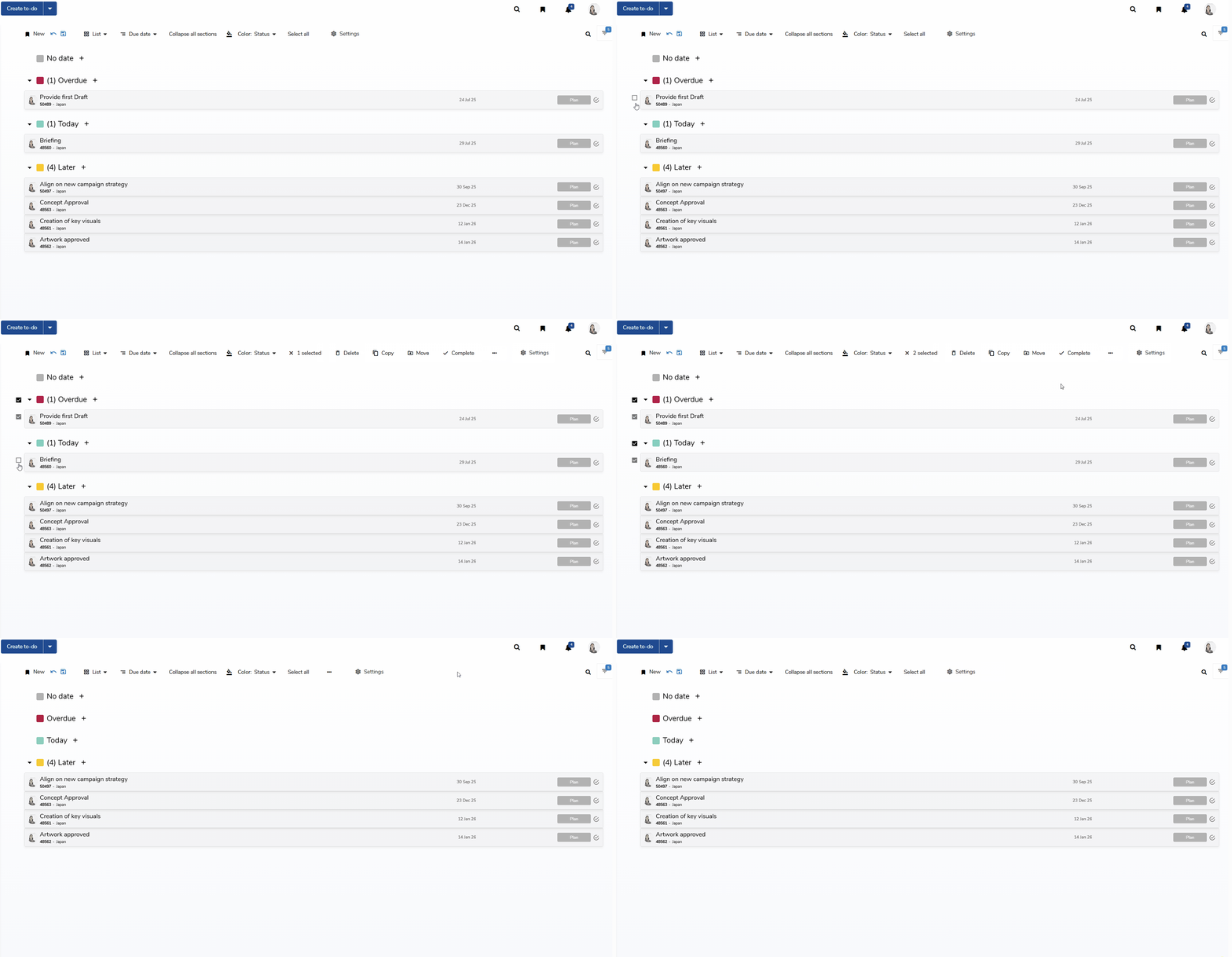
A lot of the information about a to-do is also visible in the list. Individual attributes can even be customized directly from there, selecting one or multiple To-Dos at once:
Group and Filter To-Dos
To efficiently manage your tasks, Marmind offers various options for filtering, grouping, and searching to-dos:
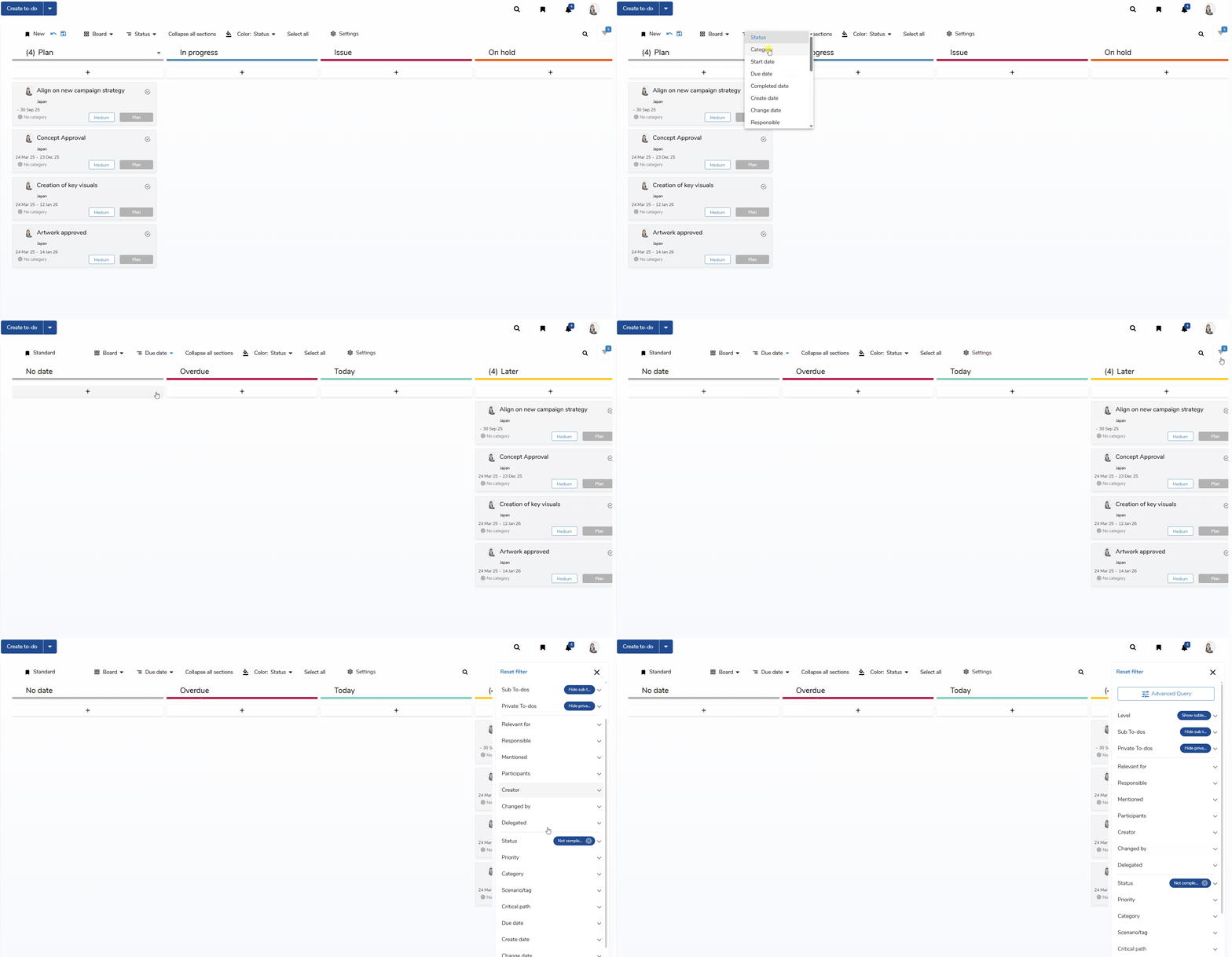
Grouping To-Dos
You can group to-dos by any of the following criteria:
-
Status
-
Category
-
Start date / Due date
-
Completed date
-
Create date
-
Change date
-
Responsible
-
Belongs to
-
Priority
-
Created by / Changed by
-
Workspaces / Sub-workspaces
-
Campaigns / Sub-campaigns
-
Projects
-
Actions
-
Scenarios or tags
-
Tag category
Filtering To-Dos
To narrow down the list, use filters such as:
-
Level
-
Sub-to-dos
-
Private To-Dos
-
Relevant for
-
Responsible
-
Mentioned
-
Participants
-
Creator
-
Changed by
-
Delegated
-
Status
-
Priority
-
Category
-
Scenario/tag
-
Create Date
-
Change date
-
Due date
-
Completed date
-
Archive
-
Belongs to
-
Organizational Unit
-
Department
-
Location
Tip: The “level” filter lets you show or hide tasks according to level
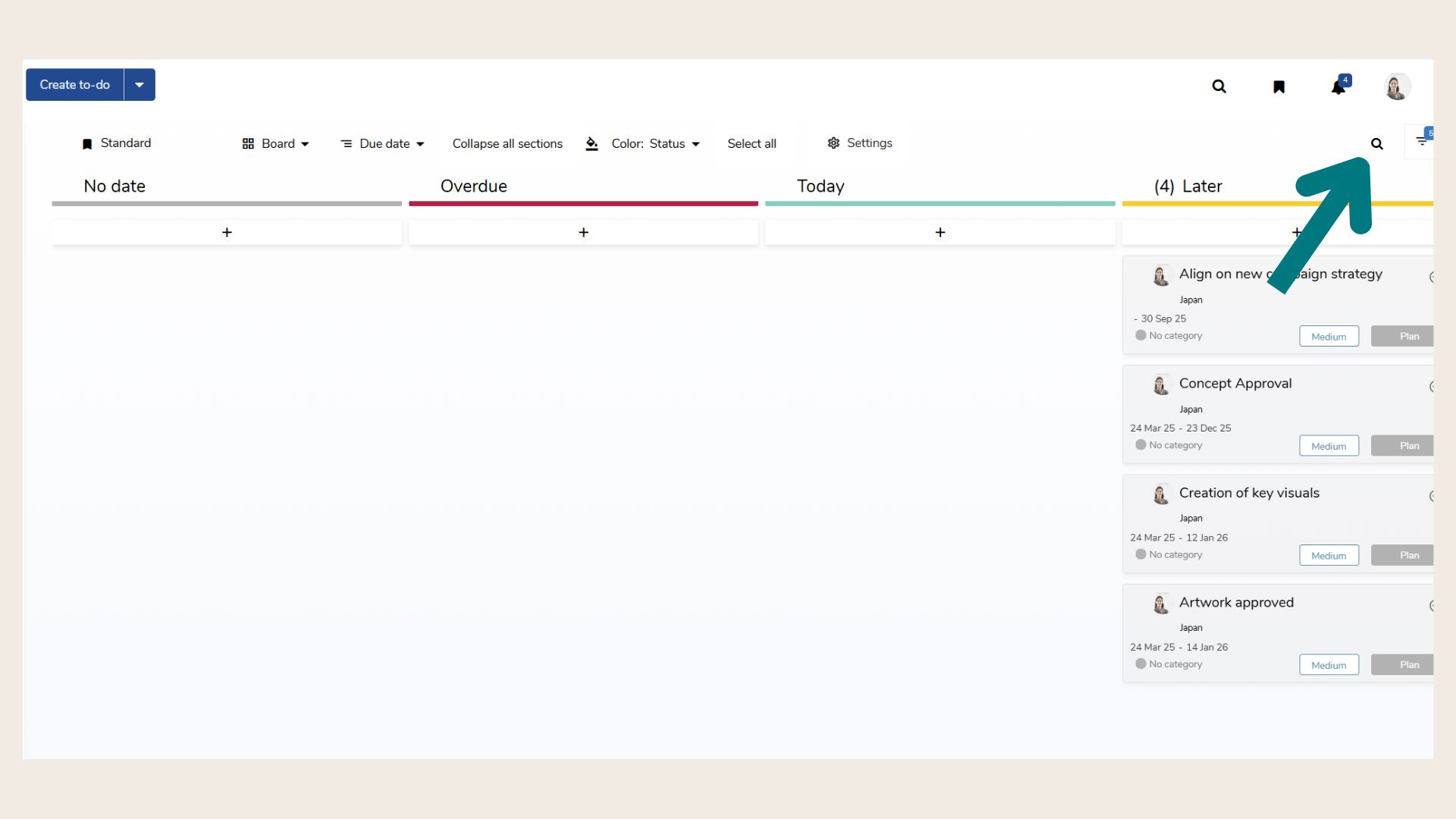
Searching To-Dos
Use the search bar to quickly find specific to-dos by keyword.
❓ FAQs